Render Mode

Render Your SketchUp Office as a Real Photo

From CAD to Reality. Render a basic SketchUp office model into a photorealistic workspace, complete with natural daylight, office greenery, and realistic material textures.

The 3D Model

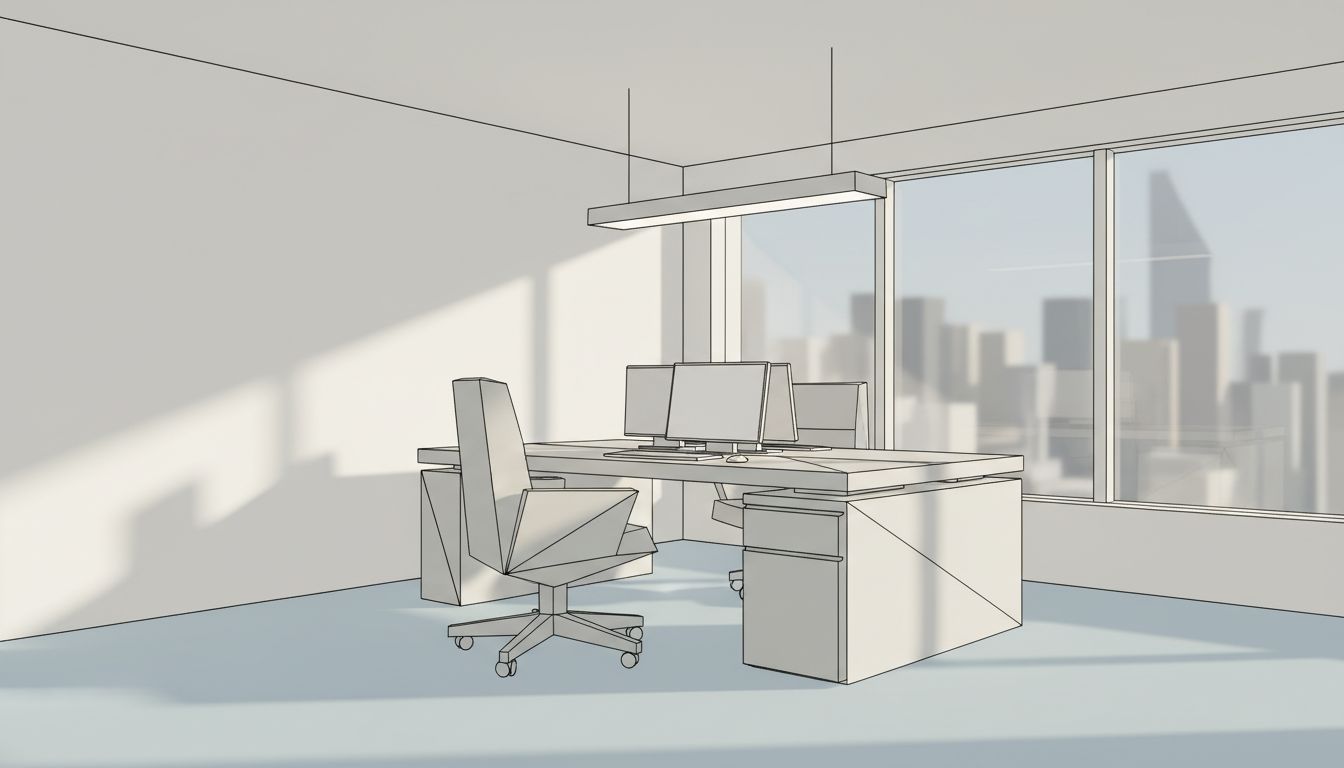
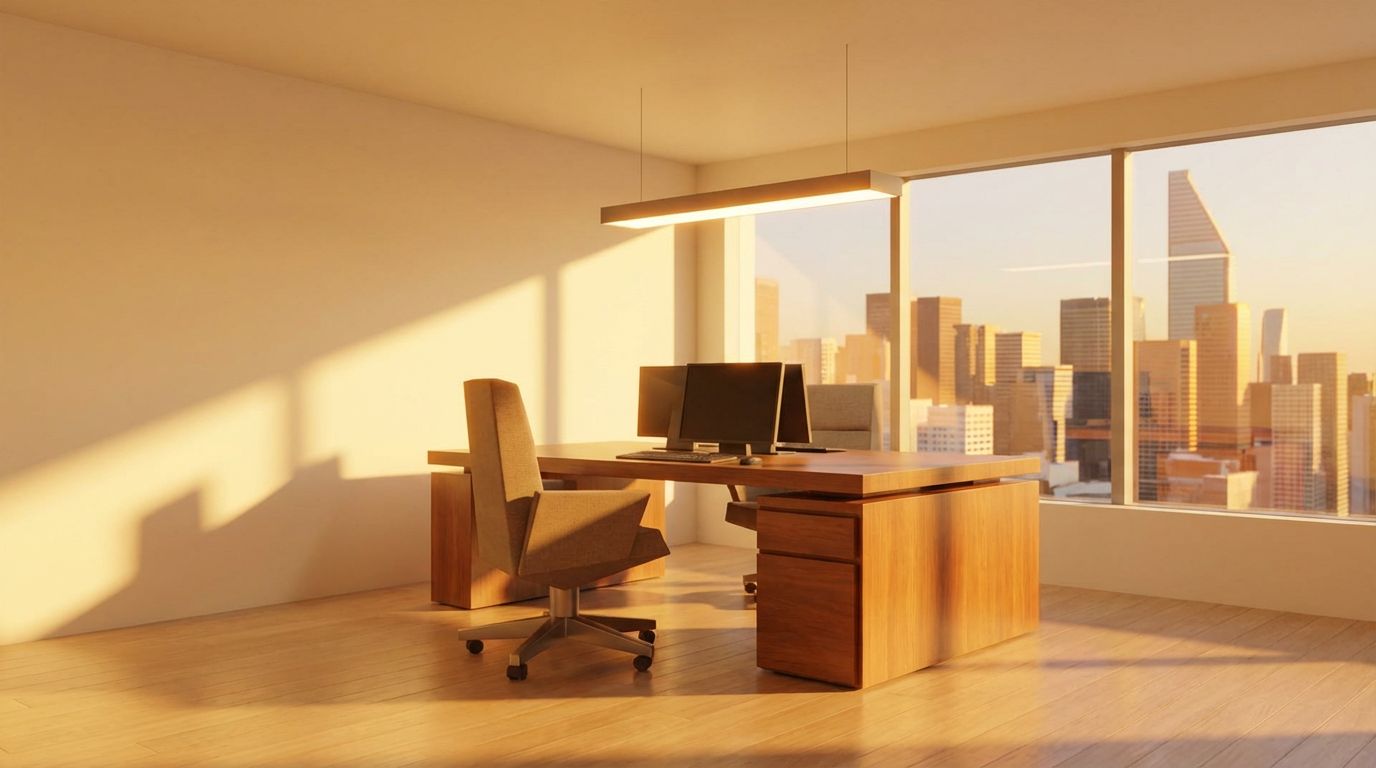
This SketchUp office render demonstrates the power of golden hour lighting to elevate a simple workspace model into a compelling architectural visualization. The original 3D model is intentionally sparse: a single executive desk with a filing pedestal, an ergonomic office chair, dual monitors, and a suspended linear pendant light. The room features floor-to-ceiling windows along one wall with a city skyline visible beyond. Clean edge lines and flat gray tones define the SketchUp aesthetic, clearly communicating the spatial design without material detail.

From Sketch to Photorealism

The golden hour setting transforms this utilitarian office into a space of warmth and sophistication. Rich amber light floods through the windows, casting elongated shadows of the desk and chair across the hardwood floor. The desk gains a deep, polished wood finish that catches the low-angle sunlight, while the chair receives a realistic fabric-and-wood treatment. The suspended pendant light appears as a refined architectural element with warm metallic undertones. Perhaps most dramatically, the city skyline through the windows is rendered with golden-lit skyscrapers that create a powerful sense of place and prestige.

Tips for Better Renders

Golden hour, the period shortly before sunset, is prized in architectural photography and visualization for its warm directional light and long shadows. For office renders specifically, it conveys professionalism and aspiration, making it a popular choice for commercial real estate marketing and coworking space presentations. The dramatic interplay between the warm sunlight and the cooler shadow areas creates visual depth that flat, evenly lit renders simply cannot achieve. This single SketchUp screenshot produced a result comparable to what would require careful lighting setup in traditional rendering software.

Inputs Used

Original Room SketchUp 3D model of office
1
Before SketchUp 3D model of office
After Photorealistic render of office during golden hour

Render Settings Used

Golden Hour

Ready to transform your room?
SketchUp 3D model of office Original
Photorealistic render of office during golden hour Result

How to Recreate This

Transform a minimal SketchUp office model with an executive desk, ergonomic chair, dual monitors, and pendant light into a stunning golden hour visualization with rich wood textures and dramatic city views.

✨ What You'll Achieve

SketchUp 3D model of office Original Room
Photorealistic render of office during golden hour After
1

Select Mode

Render mode converts your 3D office model into a photorealistic image. For this executive office with its floor-to-ceiling windows and city backdrop, Render mode applies material realism and golden hour atmospheric lighting to create an aspirational workspace visualization.

📱 Select Mode from Sidebar
Replace Mode
Replace specific elements with reference images
Home Staging | Redesign
Redesign the room or clean it
Render Mode
Convert 3D models to photorealistic images
Custom Mode
Use your own images and instructions
2

Upload Your Room

Upload a screenshot of your SketchUp office showing the executive desk with dual monitors, the ergonomic chair, the suspended pendant light, and the full-height window wall with city skyline beyond.

📱 Upload Your Room
3

Configure Options

The AI will assign polished wood to the desk, upholstered fabric and wood accents to the chair, brushed metal to the pendant light, and warm hardwood to the floor. The city skyline will be rendered with golden sunset tones.

📱 Configure Render

Choose Render Type

🏠 Interior
🏢 Exterior

Time of Day

🔄 Auto
🌅 Morning
☀️ Midday
🌤️ Afternoon
🌇 Golden Hour
🌆 landing.examples.settings.time.dusk
🌙 Night
✏️ Custom

Season

🔄 Auto
🌸 Spring
🌞 Summer
🍂 Autumn
❄️ Winter
✏️ Custom
4

Generate

The photorealistic result showcases the office in warm golden light with elongated shadows, a richly detailed wood desk, realistic monitor screens, and a stunning golden-lit cityscape visible through floor-to-ceiling windows.

📱 Generate

Your Result

🎯 Try the Result

Drag the slider to compare before and after!

Photorealistic render of office during golden hour
SketchUp 3D model of office
Before
After

Frequently Asked Questions

Can the AI render a SketchUp model with just a desk and chair, or does it need a fully furnished room?

RoomLab works effectively with models at any level of completeness. Even a sparsely furnished office with just a desk, chair, and pendant light produces a compelling render. The AI focuses on applying realistic materials and lighting to whatever geometry is present. Simpler models can actually produce cleaner, more focused renders that highlight key design elements.

How does golden hour lighting affect an office render compared to standard daylight?

Golden hour produces warm, directional light at a low angle that creates dramatic shadow patterns and a rich amber color palette. Compared to standard midday light, which is cooler and more even, golden hour adds emotional warmth and visual drama. For office spaces, it shifts the mood from clinical productivity to aspirational elegance, making it ideal for marketing materials and client presentations.

Does the render preserve the exact position of monitors and small objects on the desk?

The AI maintains the overall desk geometry and general placement of objects visible in your SketchUp screenshot. Dual monitors, keyboard areas, and desk accessories will appear in approximately the same positions. However, small details may be reinterpreted with more photorealistic proportions. For best results, ensure your SketchUp screenshot clearly shows all objects you want preserved.