Wallpaper Visualizer: See Wallpaper on Your Own Wall Before You Buy
 David Sirera
The short answer: to see wallpaper on your own wall before you buy it, upload two images to RoomLab.app: a photo of the room as it is, and a photo of the wallpaper sample you like. Choose Replace Material, pick Walls as the surface and generate. The pattern goes onto your real walls while the bed, furniture, windows and light stay where they are. The sample can come from any brand or any shop. Below are the exact steps, three real results (including an accent wall test), and the things a wallpaper visualizer cannot tell you.
Wallpaper is harder to imagine than paint. A paint chip is one color; a wallpaper sample is a pattern, and patterns change character when they cover three meters of wall instead of an A4 sheet. A small botanical print can look calm on a sample and busy across a whole bedroom, or the other way round. A photo of your own room with the pattern on it settles that question before you order rolls, book an installer or start stripping the old paper.
Key takeaways
- You need two photos: your room, and the wallpaper. The wallpaper image can be a product swatch from any store's website or a phone photo of a physical sample.
- Any brand works: RoomLab.app's Replace Material tool takes the pattern from your picture, so you are not limited to one retailer's catalog the way brand visualizers are.
- All walls or one wall: with Walls selected, every visible wall gets the pattern. A short line in Additional Instructions, such as "only the wall behind the bed", turned it into an accent wall in our test.
- Check the scale yourself: the same sample came out with leaves about twice as large in two runs. Treat the result as a look test, then confirm pattern size and color with a real sample.
How can I see wallpaper on my wall before buying it?
Take a photo of the room, get an image of the wallpaper, and use a visualizer that puts one onto the other. There are two kinds. Brand visualizers are run by wallpaper makers and shops, such as Tempaper, Milton & King and Urbanwalls: you upload a room photo or pick a sample room, then browse that brand's designs on it. Material replacement tools work the other way round: you bring the wallpaper image, from wherever it comes from, and the tool applies it to the walls in your photo.
Brand visualizers are the right first stop if you have already chosen a shop, because every result maps to a product you can order from it. A material replacement tool fits when you are comparing papers from different brands, when you found a design on a marketplace or in a showroom, or when you have a physical sample in your hand. That is what Replace Material in RoomLab.app does: you pick the surface (walls, floor, rug, curtains, countertop or backsplash), add the new material as a picture, and only that surface changes.
How do you use a wallpaper visualizer with your own photo?
These are the steps in the RoomLab.app workspace today. It works in the browser on a phone or a computer, so there is no app to install. The first try takes a few minutes, most of it spent finding a clean sample image; each try after that takes about a minute.
Step 1: Photograph the wall you want to paper
Stand back far enough to get the whole wall in the frame, from the skirting board to the ceiling line, and include a little of the furniture in front of it. Shoot in daylight with the lights on, holding the phone level so the wall's vertical edges stay vertical. A straight-on or gently angled view works best. The tool can only paper wall it can see, and furniture in the shot helps you judge the pattern's size afterwards.
Step 2: Get a flat image of the wallpaper
Use a straight-on image of the pattern alone. That can be the product swatch from the retailer's page (the image that shows the repeat, not the styled room shot). It can also be a phone photo of a physical sample laid flat in daylight. Show at least one full repeat of the pattern if you can. Avoid photos taken at an angle, with glare, or with a strong color cast, because those carry over onto your wall.
Step 3: Open Replace Material and add both images
Open the RoomLab.app workspace, choose Replace Material and upload the room photo. Then add the wallpaper image under New Material. The Generate button stays disabled until both are in.
Step 4: Pick Walls, and say which wall if it is only one
Under "Pick a surface to retexture", choose Walls. On its own, that papers every wall the camera can see. For a feature wall, open Additional Instructions (Optional) and name it in plain words: "only the wall behind the bed" or "only the wall with the TV". You can also describe the size of the pattern there, for example "small print, leaves about 10 cm tall", if the sample photo gives no clue.
Step 5: Generate, compare and try the next pattern
Drag the before and after slider and look at the edges: around window frames, behind the headboard, at the ceiling line and at any doors. Then run the same room photo with your second and third candidates. Seeing three patterns in the same room from the same angle is where a visualizer earns its keep. The differences in busyness and tone are obvious side by side, in a way they never are when you hold small samples up to the wall.
What does wallpaper look like in a real room photo?
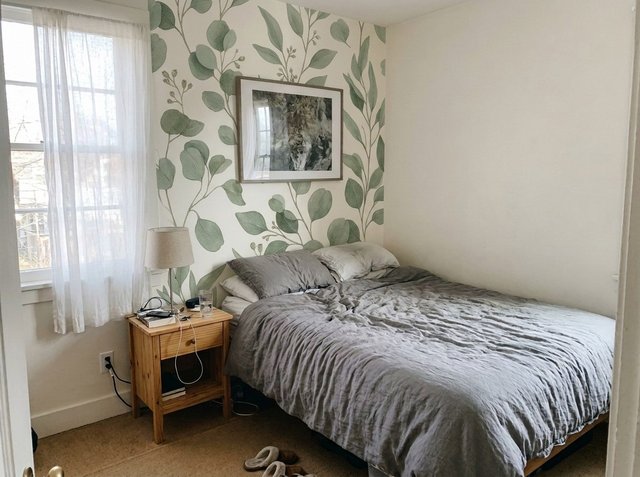
Here are three real RoomLab.app results, shown without retouching. We made the two bedroom results for this guide on November 9, 2026. We created an ordinary bedroom photo and a eucalyptus wallpaper sample as example images, not a customer's photos. Then we ran Replace Material on them with the same instructions the workspace sends. The living room comes from our examples library.
Test setup
One bedroom photo (1200 x 896 px) and one wallpaper sample image, run through Replace Material twice on November 9, 2026. Run 1 used Walls with no instructions. Run 2 used Walls plus one line of Additional Instructions. Both results are shown exactly as they came out. To compare pattern size, we measured the leaves in pixels (px) against the 200 px wide framed print above the bed: a typical leaf is about 35 px wide in run 1 and about 65 px wide in run 2.
Bedroom: plain white walls to a sage eucalyptus print
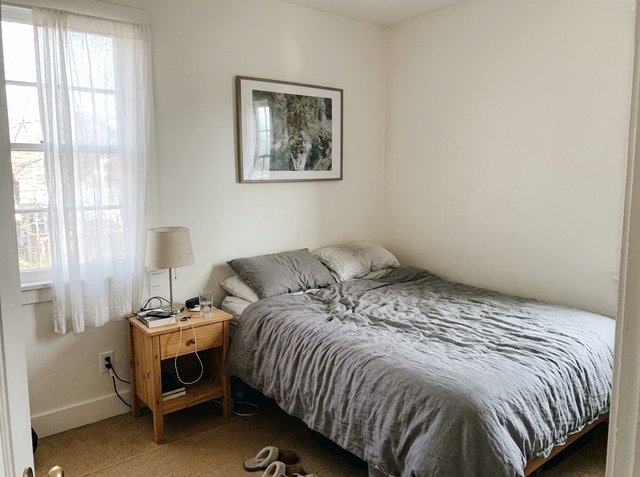
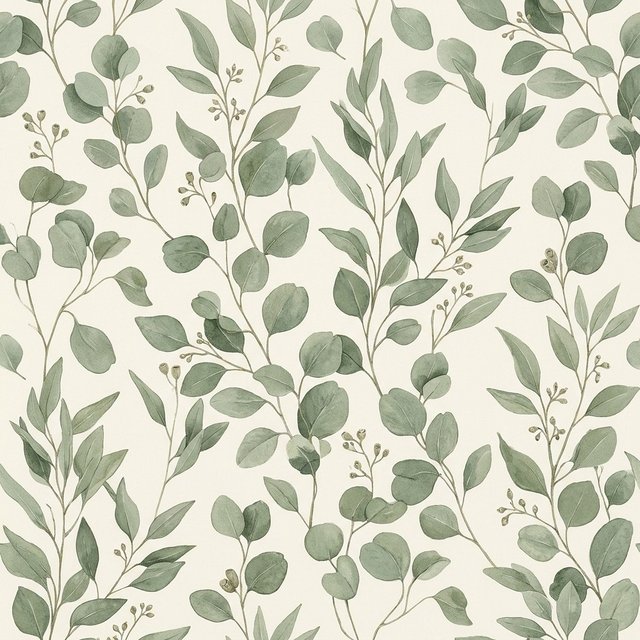
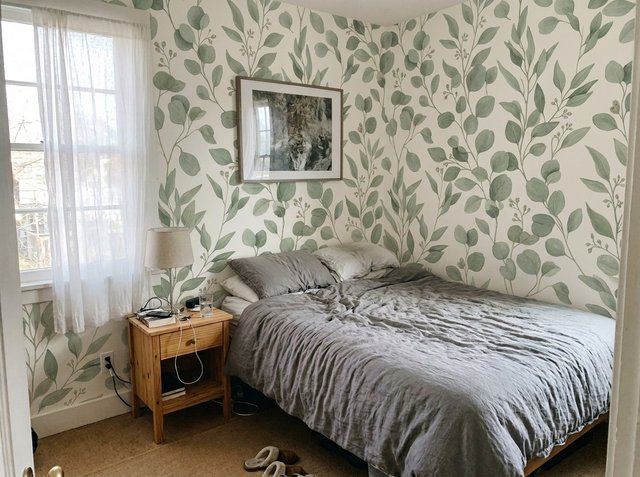
What held: the bed, the crumpled duvet, the lamp, the charging cables, the glass of water, the framed print and the sheer curtains are exactly where they were. The paper wraps the inside corner and runs behind the print and the headboard instead of over them, and the skirting board stays white. What it told us: on three walls, this soft print turns a quiet room into a busy one. That is the kind of verdict a sample in your hand cannot give you. The honest limitation: with only Walls selected, the tool papered every visible wall, including the narrow strip around the window. If you were only ever planning one wall, say so in the instructions, as in the next result.
Same bedroom: an accent wall behind the bed
For this run we kept Walls selected and typed one line into Additional Instructions: "Only the wall behind the bed. Keep the wall with the window plain off-white." The paper now stops at the corner and the window wall and the side wall stay plain, which is how most people actually use a bold pattern. The honest limitation: compare the leaves with the previous result. From the same sample, they came out roughly twice as large. The sample photo has nothing in it to give the leaves a real size, so the tool chooses one, and it does not choose the same one every time. Before you judge a pattern, check its size against something you know, such as the framed print or the width of the nightstand, and if size matters, state it in the instructions.
Living room: white walls to a dark floral
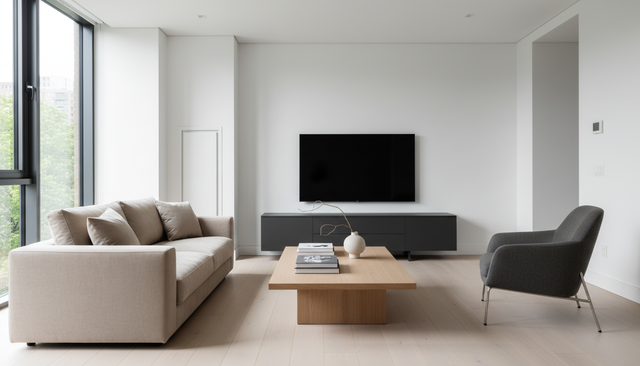
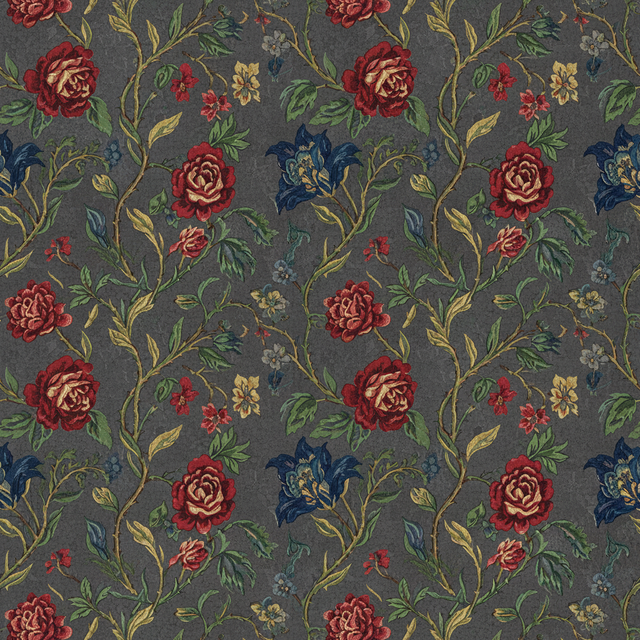
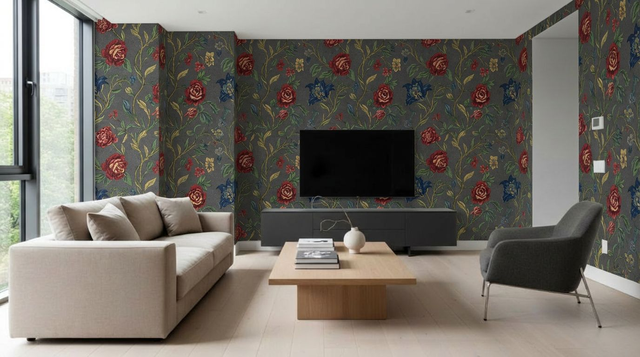
What held: the TV, media unit, sofa, armchair, coffee table and even the thermostat on the right wall are untouched, and the pattern follows each wall's angle into the corners. What it told us: a dark, saturated floral makes a white, minimal room feel much smaller and more formal, and the cream sofa now becomes the brightest thing in the room. The honest limitation: the flush white door to the left of the TV wall disappeared under the wallpaper. A door with no visible frame reads as wall, so the tool papered it. If your room has flush doors or built-ins, check them in the result, and add "keep the door white" to the instructions. See the full living room example with its slider.
Should I wallpaper one wall or the whole room?
Try both in the same photo and compare; it costs two generations and answers the question better than any rule of thumb. In our bedroom, the same print reads as calm and deliberate on the wall behind the bed and as busy on all three walls. As a general pattern, bold, large or dark designs tend to work as a feature wall, and small, low-contrast designs can cover a whole room without taking it over. Your furniture, light and ceiling height change that, which is why seeing it in your own photo matters more than the general advice.
If you are torn between wallpaper and paint for the same wall, run the paint version too. Our guide to testing paint colors on your wall shows how to compare several colors on one photo, and the two results side by side make the choice easy to talk through with whoever shares the room.
Is a brand's wallpaper visualizer or an AI visualizer better?
Neither is better at everything; they answer different questions. Use this to pick:
| Question | Brand visualizer | RoomLab.app Replace Material |
|---|---|---|
| Which wallpapers can I try? | That brand's or shop's catalog | Any design you have a picture of |
| Does it link to a product I can order? | Yes, often with samples to order | No, you buy the paper wherever you found it |
| Does it keep my furniture and light? | Varies by tool | Yes, only the walls change |
| Can I change the floor or furniture next? | Usually not | Yes, on the same photo |
| Cost | Usually free for the brand's designs | One free image on a new account, then credits |
If the paper you love comes from a brand with its own visualizer, use it: you get the true product scale from the maker. Are you comparing designs from two brands, or does the paper you like have no visualizer at all? Then a tool that takes any sample is the only way to see them on the same wall.
What can't a wallpaper visualizer tell you?
It shows how a pattern looks in your room. It does not replace a physical sample, a measurement or a decorator. Keep these limits in mind:
- Pattern scale. As the two bedroom results show, the size of the motif is an estimate unless the sample photo gives it away. Check the repeat size on the product page and compare it with something in your room.
- Exact color. Phone cameras, product photos and screens all shift color. Narrow your choice to one or two papers on screen, then order physical samples and look at them on the wall in morning and evening light.
- Texture and finish. Grasscloth, flocked, embossed, metallic and vinyl papers look similar in a photo but very different in person, and a photo cannot tell you how washable a finish is.
- Pattern matching and seams. Real wallpaper is hung in drops, with a straight or offset match. The image shows a seamless wall; it does not plan where the seams fall or how much paper the match wastes.
- How many rolls to buy. The photo does not measure the room. Use the wall measurements, the roll size and the pattern repeat from the product page, or ask the shop or your decorator to calculate it.
What else can you change in the same photo?
Once you like a wallpaper, click Use as Input on the result and keep going. Replace Material also swaps the floor, rug, curtains, countertop and backsplash, so you can check a new paper against a new floor in one image. If the bed or sofa now looks wrong against the pattern, Replace Furniture puts a product photo of the piece you are considering into the room and leaves the new walls as they are. Our roundup of AI tools for swapping furniture and materials compares the other apps that do this.
Frequently asked questions
Is there an app that lets you see wallpaper in your room?
Yes. Many wallpaper brands offer visualizers for their own designs. To try any design from any shop, upload your room photo and the wallpaper image to RoomLab.app's Replace Material tool, choose Walls and generate. It runs in the browser on a phone or computer, with no app to install.
Can I use a picture of wallpaper from any website?
Yes. Use the flat swatch image that shows the pattern straight on, not the styled room photo, or take a daylight photo of a physical sample. The cleaner the sample image, the closer the result is to the real paper.
Can I put wallpaper on just one wall?
Yes. Keep Walls selected and add a line such as "only the wall behind the bed" in Additional Instructions. Without that line, the tool papers every wall it can see.
Does it work for peel and stick wallpaper and murals?
The tool works from a picture of the pattern, so peel and stick and traditional paper are handled the same way: what matters is the design. Murals are one large image rather than a repeat, and we have not tested them for this guide, so describe in the instructions how the mural should sit on the wall and check the result closely.
Is there a free wallpaper visualizer?
Brand visualizers are usually free for that brand's own designs. A new RoomLab.app account includes one free image generation, enough to try one wallpaper on your wall; after that it runs on credits, listed on the plans page.
Ready to Transform Your Space?
Start creating stunning room transformations in minutes. Sign up and try it yourself!
More Articles
Virtual Home Staging Before and After: Real Examples, Explained
Virtual home staging before and after photos, explained pair by pair: what the AI changed, what it must never change, and a real test where two of three results failed.
9 min read
Rug Visualizer: Try a New Rug Pattern on Your Own Room Photo
See a new rug in your room before you buy it: upload a room photo and a picture of any rug, and RoomLab.app puts that pattern on the rug you already have. Steps, two real before and after examples, and when a store's view-in-room tool is the better choice.
8 min read
Virtual Renovation for Real Estate: Show What a Dated Listing Could Become
What virtual renovation is, how it differs from virtual staging, what it costs and how to label it, with three real before and after examples of dated rooms.
10 min read