Rug Visualizer: Try a New Rug Pattern on Your Own Room Photo
 David Sirera
The short answer: if there is already a rug in your room, you can see a new one in its place with RoomLab.app. Upload two images: a photo of the room and a picture of the rug you are thinking of buying. Choose Rug as the surface, generate, and the Replace Material tool puts the new pattern and colors on your existing rug, under your real furniture and in your real light. It keeps the rug's shape and size, so it shows you the pattern, not a new size. If your floor is bare or you are choosing between an 8x10 and a 9x12, a store's view-in-room tool is the better fit, and this guide says when.
Rugs are hard to buy online. A product photo shows the rug flat, from above, in a bright studio. In your room it sits at an angle, half under a sofa, next to a wall color and a floor tone the photographer never saw. The two things a product page cannot show you are how the colors sit with your room and how the size fits it. A photo-based rug visualizer can answer the first before you pay. This guide shows how, with two real results.
Key takeaways
- You need two images: a photo of your room with its current rug, and a picture of the new rug. The rug picture can come from any store, a catalogue or a phone photo of a sample.
- Only the rug changes: Replace Material re-textures the rug you pick and leaves the floor, furniture, walls and lighting as they are.
- It shows pattern and color, not size: the new rug keeps the outline of the old one. It cannot place a rug on a bare floor or preview a bigger size.
- Use a store's tool for size: retailer view-in-room tools and free placement tools let you drag a rug onto an empty floor and switch sizes, usually only for their own catalogue.
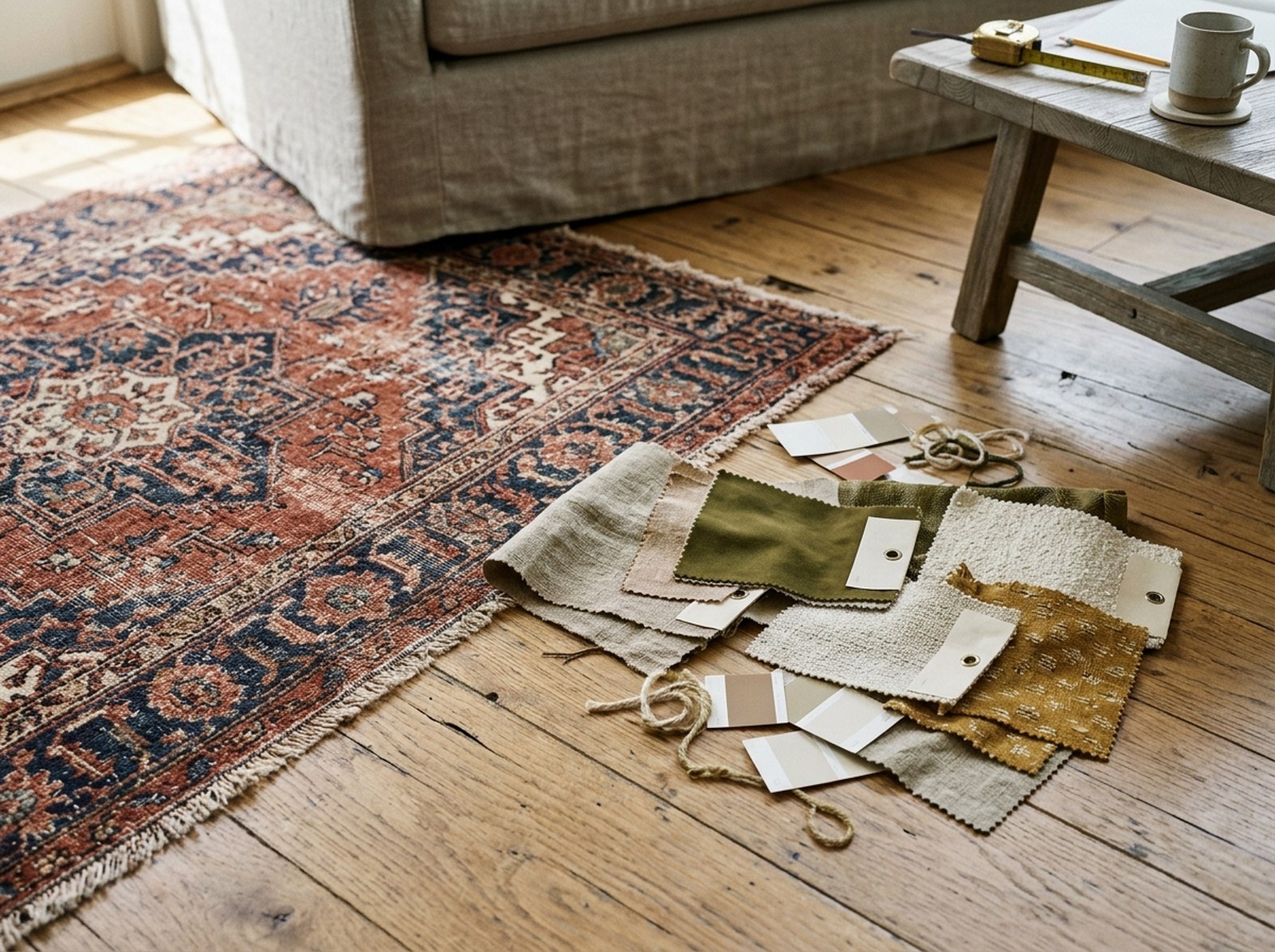
How can I see a rug in my room before buying it?
Take a photo of the room, get a picture of the rug, and use a visualizer that combines the two. A rug visualizer is a tool that shows a rug you are considering inside a photo of your own room. There are two kinds, and they answer different questions:
- Placement tools are visualizers that drop a flat rug image onto your floor. You drag it, rotate it and switch between sizes. Most rug stores have one on their product pages, usually labelled "View in Room", and they work with that store's rugs. They are the right tool for "will a 9x12 fit under my sofa?"
- Material replacement is the other approach: it starts from a rug that is already in your photo and changes what it is made of: pattern, colors, weave. The result keeps your furniture standing on it, follows the floor's perspective and picks up the room's light. It is the right tool for "will this kilim look too busy next to my gray sofa?"
RoomLab.app does the second. Replace Material treats the rug as one of six surfaces you can retexture, alongside walls, floor, curtains, countertop and backsplash. You give it the new rug as a picture, and it changes the rug and nothing else. Because the picture can come from anywhere, you can compare a rug from one store with a rug from another in the same room photo.
How do you try a new rug pattern on your room photo, step by step?
These are the steps in the RoomLab.app workspace today. The first try takes a few minutes, mostly spent finding a clean picture of the rug. Each try after that takes about a minute.
Step 1: Photograph the room with the whole rug in view
Stand in a corner or doorway, hold the phone at chest height and tilt it down so the rug and the furniture around it fill the lower half of the frame. Daylight works best. The tool can only re-texture rug it can see, so a photo that cuts the rug in half shows you half a rug. If the rug is covered in toys or laundry, clear it first or run the photo through Declutter Room. Furniture on the rug is fine and helps the result look real.
Step 2: Get a flat, close picture of the new rug
This step decides the quality of the result. The best picture is a straight-on close-up of the rug's surface, the kind of detail shot most rug stores show next to the main product image. A phone photo of a store sample laid flat in daylight works too. Avoid lifestyle photos with a sofa or a dog on the rug, steep angles and strong shadows: the tool treats the picture as a material sample, so anything in it can end up in your rug.
Step 3: Open Replace Material and upload both images
Open the RoomLab.app workspace, choose Replace Material and upload your room photo. Then add the rug picture under New Material. Generate stays disabled until both images are in.
Step 4: Pick Rug as the surface to retexture
Under "Pick a surface to retexture", choose Rug. The floor around it stays as it is, so you can see how the new rug reads against your wood, tile or carpet. If the picture alone does not say enough, open Additional Instructions (Optional) and add a short note in plain words, such as "low flat weave" or "keep the fringe".
Step 5: Generate, compare, and try the next rug
Use the before and after slider to check the edges and the places where furniture legs meet the rug. Then run the same room photo with your second and third candidates. Three rugs in the same room, from the same angle, is where a rug visualizer earns its keep: a pattern that looked calm on a product page can turn out to be the loudest thing in the room.
What does the result actually look like?
Here are two real RoomLab.app inputs and outputs from our examples library. Both are example photos, run through Replace Material with Rug selected and no extra instructions, and nothing was retouched afterwards.
TV room: plain green shag to a bright geometric kilim
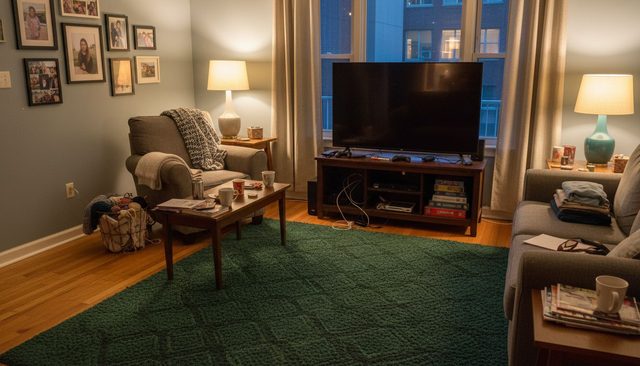
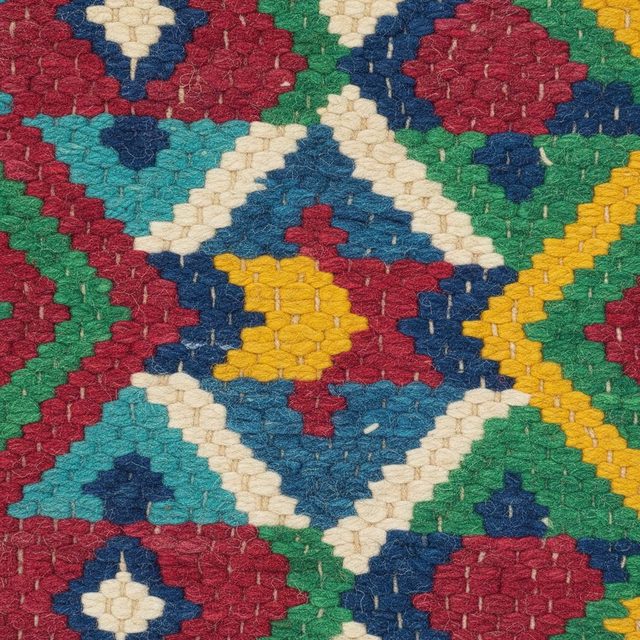
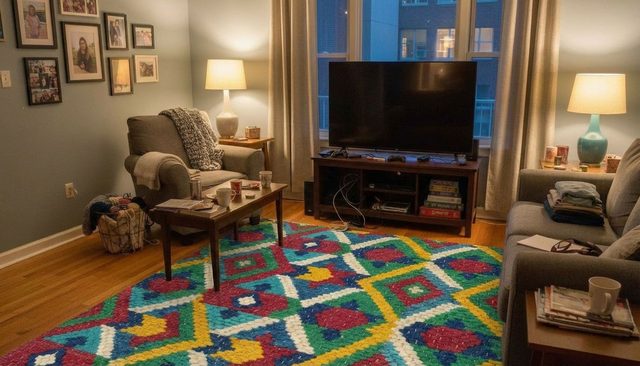
What held: the rug has the same outline as before, the coffee table legs still stand on it, and the armchair, sofa, TV stand, lamps, family photos and even the mugs and the laundry basket are untouched. The diamonds get smaller toward the TV, so the pattern lies on the floor instead of floating over it like a sticker.
What it told us: a dark plain rug was hiding how much this room leans gray. The kilim lifts it, and it also shows how quickly a busy pattern takes over a small room, which is exactly the call you want to make before buying.
The honest limitation: the colors stay close to the bright daylight sample, so the rug looks a little more vivid than a real one would under evening lamps. The motif size was also chosen by the tool, because a close-up sample gives it no scale. Use the result to judge the palette and the busyness, and check the real rug's motif size on the product page. See the full TV room rug example with its slider.
Dining room: red Persian to a gray abstract rug
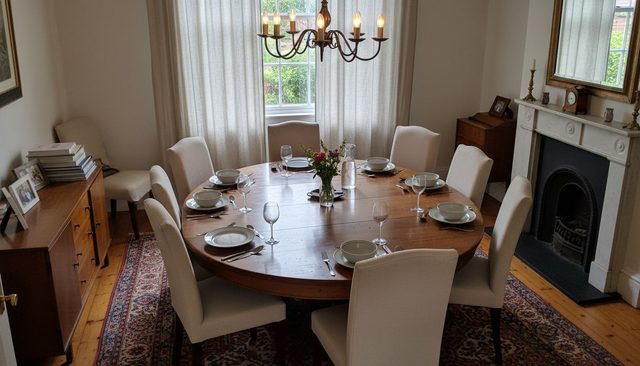
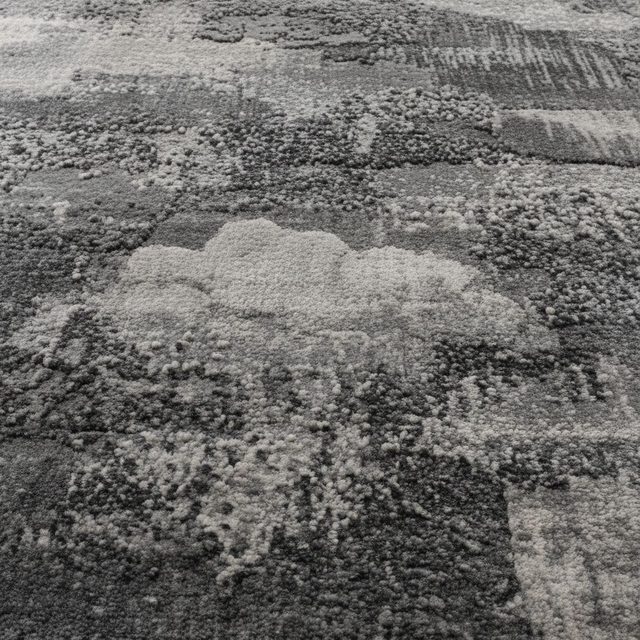
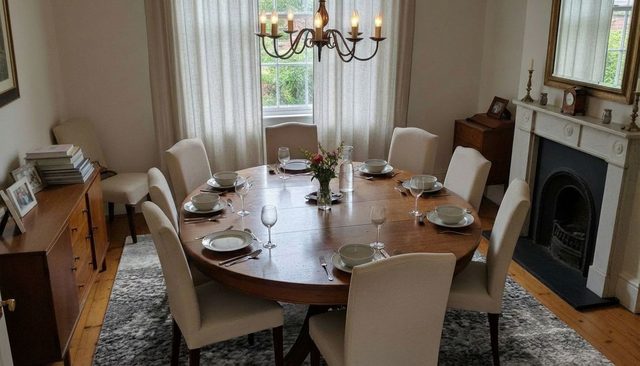
What held: the table, all the chairs, the place settings, the chandelier, the sideboard and the fireplace are where they were, and every chair leg still stands on the rug. The pine floor shows around the rug's edge exactly as before, so you can judge the new rug against the real floor.
What it told us: this is the decision many people are weighing when they search for a Persian rug under a dining table. The gray rug makes the room calmer and more modern and lets the wooden table stand out, while the red Persian tied the room to the warm pine and the brass chandelier. Seeing both versions of the same photo makes that trade visible in seconds.
The honest limitation: the new rug is exactly as large as the old one. If you wanted a bigger rug so the chairs stay on it when pulled out, this result cannot show you that. The full dining room rug example shows it full size.
Can RoomLab.app add a rug to a bare floor or show a bigger size?
No. Replace Material changes the material of a surface and keeps its shape, dimensions and position, so it needs a rug in the photo to start from, and the new rug comes out the same size as the old one. That is the right behavior for a material swap, because it is what keeps your furniture and floor intact, but it means two common rug questions need a different tool:
- No rug yet. If the floor is bare, Replace Material has nothing to retexture. Use a placement tool, which drops a rug image onto the empty floor.
- Choosing a size. Whether an 8x10 or a 9x12 fits your seating area is a measuring question. A tape measure and painter's tape on the floor answer it better than any photo edit, and placement tools let you switch sizes on screen.
Which rug visualizer should you use: a store's view-in-room tool or a photo editor?
Use the store's tool when you have already narrowed the choice to one store; use a photo-based material swap when you are comparing rugs from different places or care most about how the pattern sits with your furniture. Here is how the options we checked compare:
| Tool | How it works | Rugs it accepts | Best for |
|---|---|---|---|
| RoomLab.app Replace Material | Re-textures the rug already in your photo | Any rug picture | Pattern and color under your real furniture, plus walls and floor in the same photo |
| Store "View in Room" tools (for example Revival Rugs, Rugs USA, Jaipur Rugs) | Place a rug into your room photo or a demo room | That store's catalogue | Checking size and angle for a rug you can order there |
| DressMyCrib Rug Visualizer | Places a rug image on your floor, with sizes, drag and rotate | Any rug image | Bare floors and size comparisons across stores |
Revival Rugs says its View in Your Room tool lets you upload a photo of your own space or pick a demo room, then adjust the rug's angle and size (Revival Rugs, 2026). DressMyCrib describes its visualizer as free, browser-based, and able to place "any rug from any store" in your photo, with a size selector (DressMyCrib, 2026). Both are strong at what a material swap cannot do: size and placement on an empty floor. What a material swap adds is the rug's surroundings: because it re-textures the rug already in the photo, the furniture keeps standing on it and the new rug takes on the room's own perspective and light. RoomLab.app is our own product, so weigh that when reading this comparison, and try more than one tool if the purchase is a big one.
What can't a rug visualizer tell you?
Any rug visualizer, ours included, shows you a look. It does not replace a sample or a measurement. Before you order, keep these in mind:
- Exact color. Product photos, phone cameras and screens all shift color. Narrow the choice to one or two rugs on screen, then ask for a swatch or check the return policy.
- Pile and feel. A photo cannot tell you whether a rug is soft, scratchy, slippery on hard floors or easy to vacuum.
- Motif scale. As the TV room example shows, a close-up sample has no scale. Compare the motif size against the rug's listed dimensions.
- Size and placement. A material swap keeps your current rug's footprint. Measure before you change size.
What else can you change in the same photo?
A new rug often leads to the next question: does the wall color still work, or the floor? Click Use as Input on your rug result and keep editing the same photo. Replace Material also changes walls, floors and curtains, and Replace Furniture swaps a sofa or a table for a product photo of the one you are considering, so you can test a whole room plan one change at a time. If you are comparing tools for this kind of edit, our roundup of the best AI furniture and material swap tools covers the alternatives. The guide to changing the flooring in a photo uses the same steps for the floor around the rug.
Frequently asked questions
Is there an app to see how a rug would look in my room?
Yes. If your room already has a rug, RoomLab.app's Replace Material tool puts the pattern of any rug picture onto it, in the browser, with no app to install. If your floor is bare or you want to compare sizes, use a rug store's View in Room tool or a placement tool such as DressMyCrib.
Can I use a rug picture from any store?
Yes. RoomLab.app takes any rug image as the New Material, so you can compare rugs from different stores in the same room photo. A flat, straight-on close-up of the rug's surface gives the most faithful result.
Will the new rug be the same size as my current one?
Yes. Replace Material keeps the rug's outline, size and position and changes only its pattern, colors and texture. To preview a larger or smaller rug, measure the floor or use a placement tool that offers size options.
Is the rug visualizer free?
Every new RoomLab.app account gets one free image, no credit card required, so you can try one rug on your room before paying. More tries run on credits; see the plans page for current pricing. Many rug stores offer their own visualizers at no cost for their catalogue.
Will it keep my furniture and floor?
Yes. With Rug selected, only the rug changes. Furniture standing on it, the floor around it, the walls and the lighting stay as they are in your photo.
Ready to Transform Your Space?
Start creating stunning room transformations in minutes. Sign up and try it yourself!
More Articles
Virtual Renovation for Real Estate: Show What a Dated Listing Could Become
What virtual renovation is, how it differs from virtual staging, what it costs and how to label it, with three real before and after examples of dated rooms.
10 min read
Best AI Kitchen Design Tools (2026): Remodel From a Photo
We compared 8 AI kitchen design tools, from kitchendesign.io and Block to Planner 5D. RoomLab.app ranks first: it remodels a photo of your own kitchen.
11 min read

How Much Does Home Staging Cost in 2026?
Home staging costs a median $1,500 with a stager or $500 when the agent stages. Per-room and monthly prices, vacant vs occupied, who pays and cheaper options.
11 min read