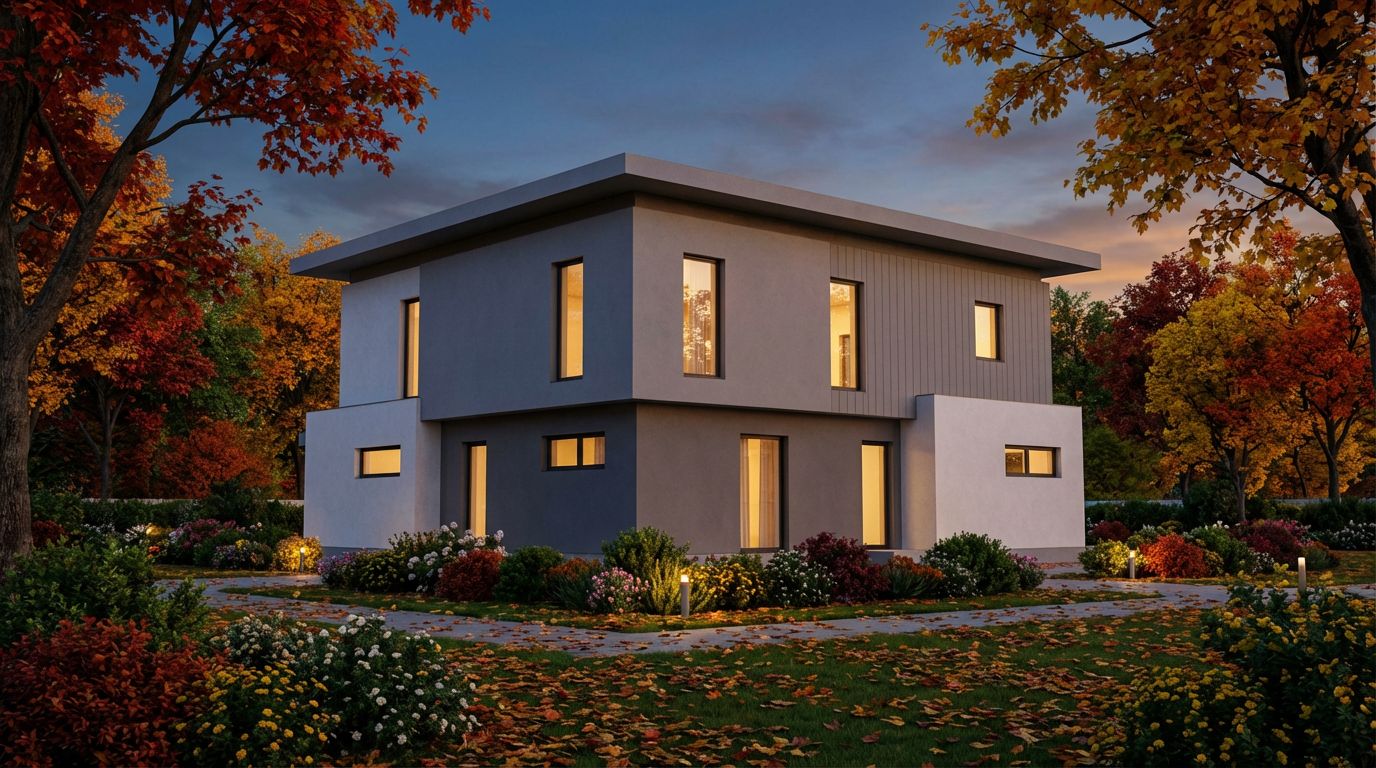
AI Interior Render Showcase — From Sketch to Photo
See how RoomLab.app's Render mode turns rough interior models and sketches into photorealistic living room images with realistic lighting and materials.
Professional Results.
Start creating stunning room transformations in minutes. Sign up and try it yourself!
Frequently Asked Questions
What kind of image can I upload to Render mode?
A screenshot or export of a 3D model, like the untextured gray render in this example, or a sketch. RoomLab.app can also open GLB, GLTF, OBJ and FBX files in the workspace so you can choose a viewpoint and use it as the render input.
Does the render change my design?
No. The layout, furniture shapes, ceiling details and camera angle follow the model. Render mode adds materials, colors, lighting and shadows. In this example the sectional, coffee table, bookcase, LED frames and staircase are all where the model put them.
Can I choose the materials and the lighting?
Yes. Choose Interior as the render type and pick a time of day, such as Afternoon or Night, to set the lighting. To ask for specific finishes, such as walnut panels or stone floor tiles, add them in the Additional Instructions field.
3D to Photorealistic
Explore 3D to Photorealistic Feature
3D Interior to Photorealistic
Read the Interior Architectural Render Tutorial
Perfect For
Related Examples
More Render Examples
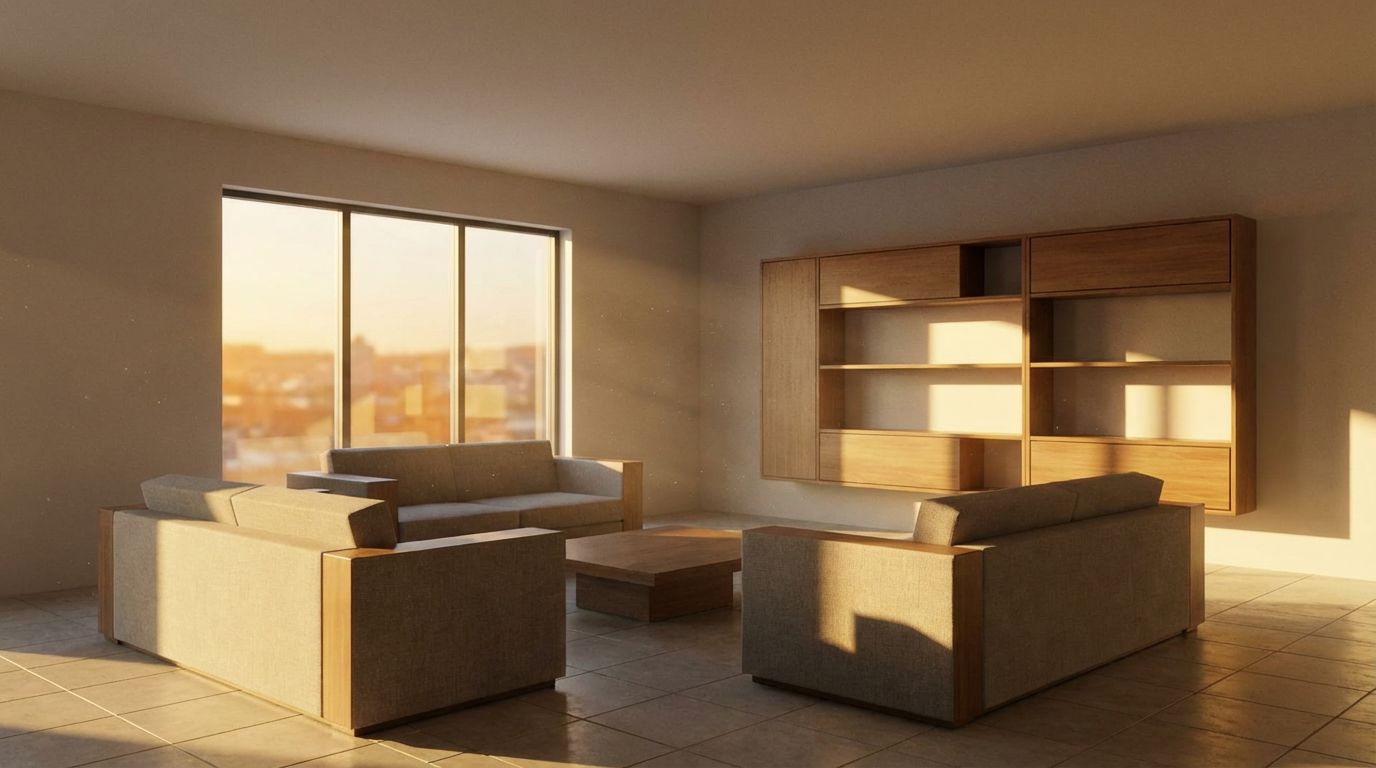
SketchUp to Photorealistic Render: Living Room Example
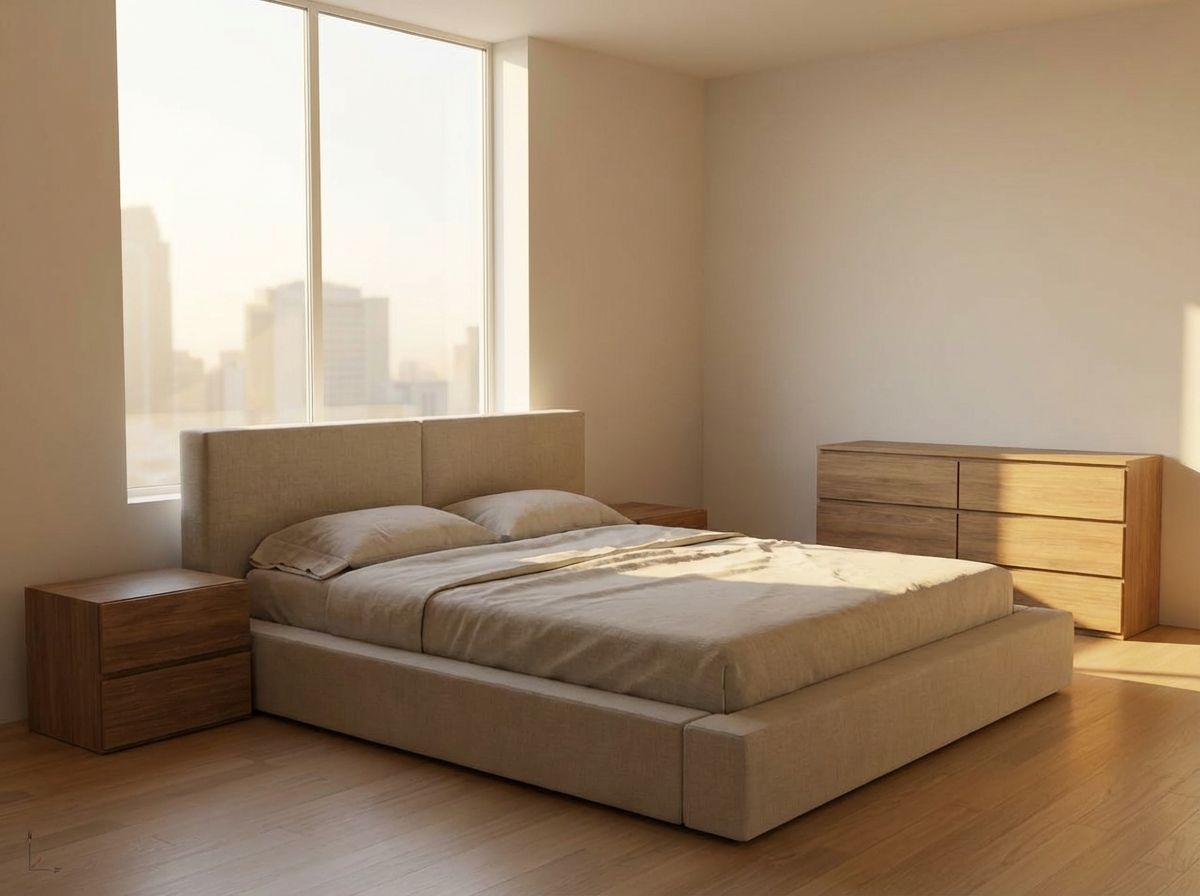
Convert Your 3D Bedroom Model to Photorealism

Turn Your 3D Bathroom into a Photorealistic Image
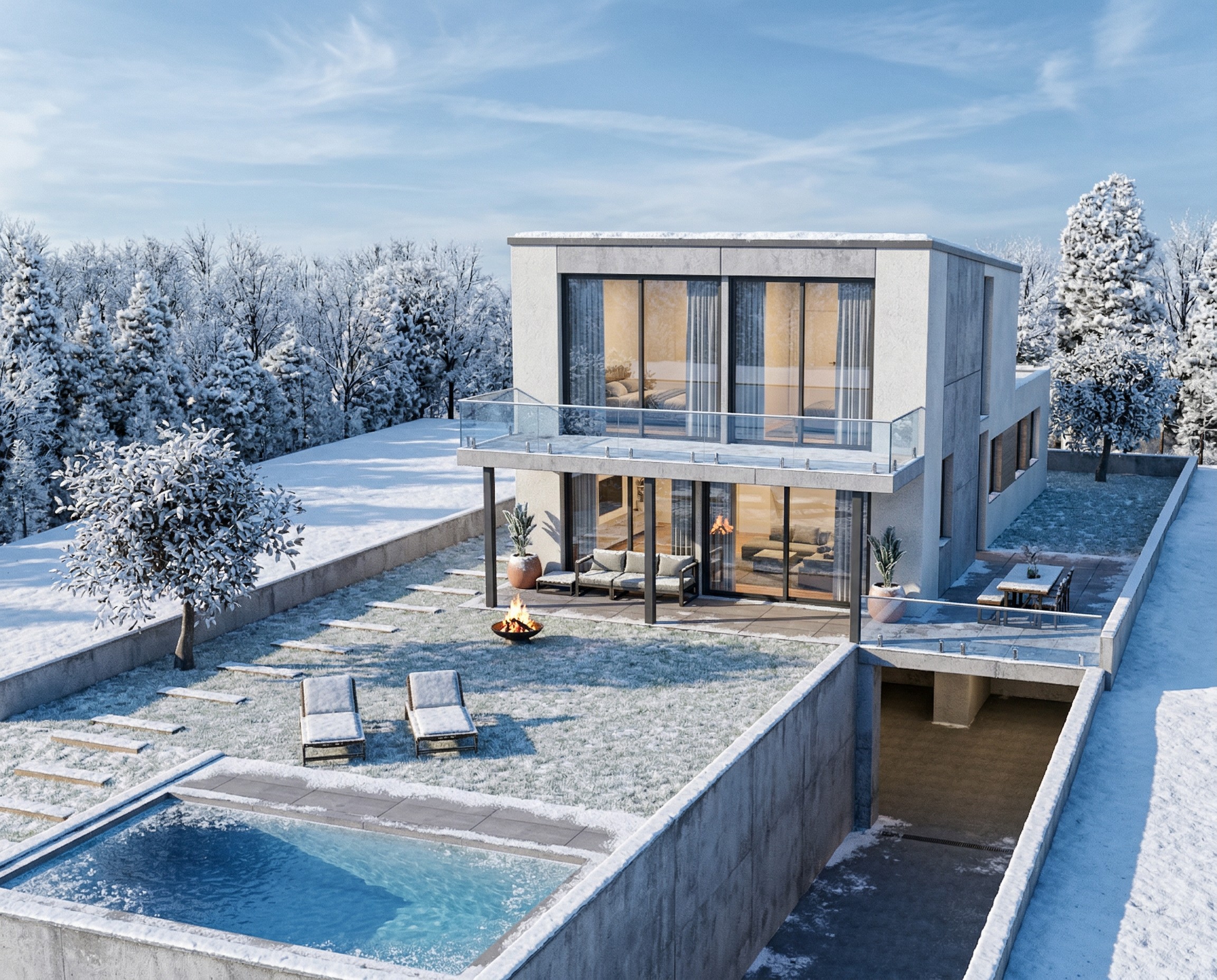
Transform Your House Model into a Winter Render
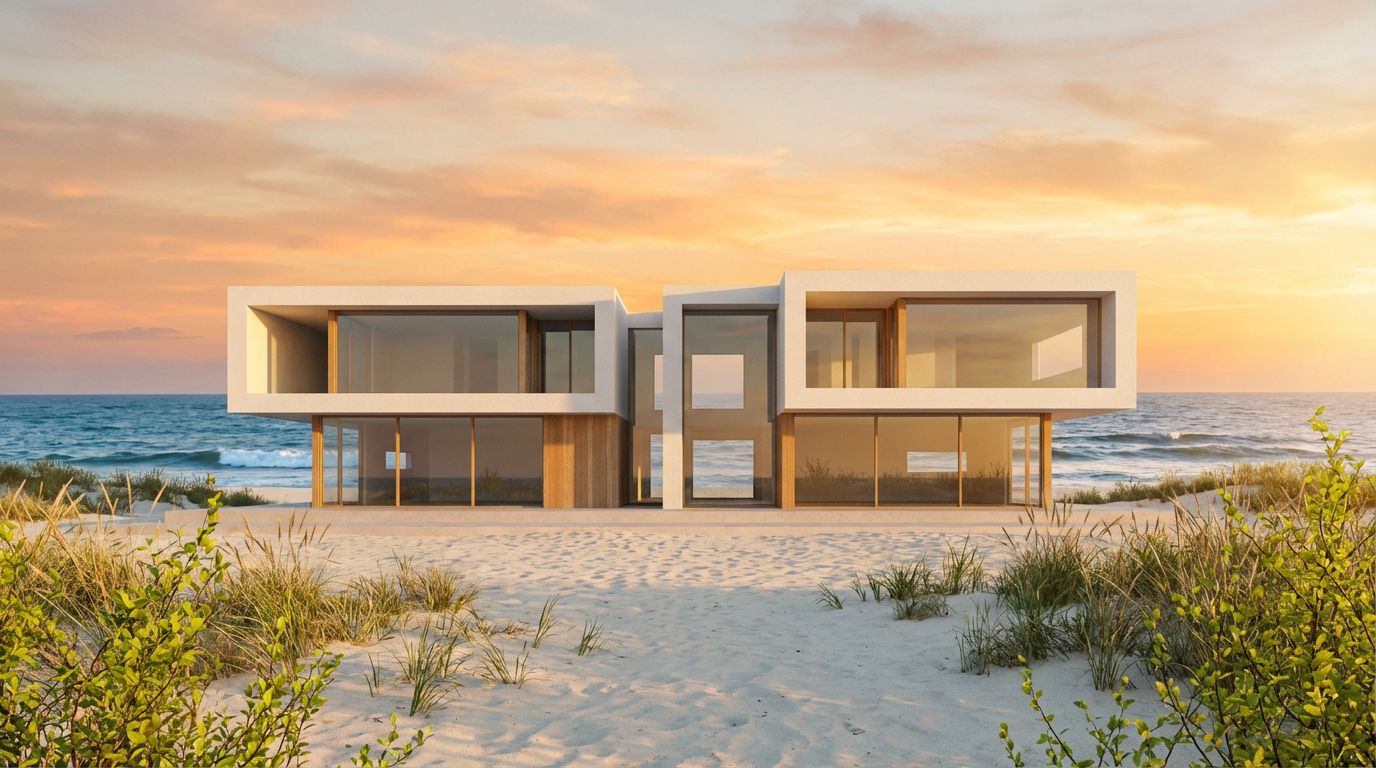
Transform Your Villa Model into a Stunning Render