SketchUp and 3D Model to Photorealistic Render With AI (No V-Ray)
 David Sirera
 The short answer: you can turn a SketchUp model into a photorealistic render with AI without installing V-Ray or setting up a single material. Save the view you want as an image, or export the model as an OBJ, FBX or GLB file, and upload it to RoomLab.app. Choose Interior or Exterior, pick the time of day (plus season and landscape for exteriors), and the AI renders your geometry with realistic light and materials while keeping the camera angle and layout of your model. This guide shows the exact steps, two real before/after results with what went wrong, and when a traditional render engine is still the better choice.
Key takeaways
- A view is enough: an exported 2D image of your SketchUp scene is a valid input. You don't need textures, lights or a render engine.
- Or upload the model itself: RoomLab.app accepts GLB, GLTF, OBJ and FBX files, lets you orbit to the angle you want, and renders that viewpoint.
- The AI keeps your geometry, not your finishes: in our tests walls, openings and furniture stayed put, but unspecified details such as a door color changed. Name the finishes that matter.
- SketchUp's own AI Render needs a paid plan: it's included in paid SketchUp subscriptions and uses credits per image. RoomLab.app is also a paid tool; check current plans.
- It's a concept tool, not a V-Ray replacement: for exact materials, physically accurate light or final marketing renders, a traditional engine still wins.
Can you render a SketchUp model with AI instead of V-Ray?
Yes. There are three practical routes, and they solve different problems:
- A traditional render engine such as V-Ray, Enscape or D5 Render. It calculates light from the materials, lights and camera you set up in the model. You get the most control and accuracy, and you pay for it in setup time and a capable computer.
- SketchUp's built-in AI Render. It works inside SketchUp on desktop, web and iPad, and generates an image from your viewport plus a text prompt or preset style (SketchUp Help). It needs a paid SketchUp subscription and uses credits for each image.
- A browser AI renderer such as RoomLab.app's architectural render tool. You upload a view or a model file, choose lighting and surroundings with buttons instead of writing the whole prompt, and render. It works with SketchUp, Revit, Blender or any tool that can export an image, and you can compare several lighting options for the same view.
The AI routes don't simulate light the way V-Ray does. They read your geometry and generate a plausible photorealistic image of it. That is why they're fast and forgiving of an untextured model, and also why they can invent details you didn't ask for. For the bigger picture, see our complete guide to AI architectural rendering.
How do I render a SketchUp model with AI, step by step?
Set up one clean view in SketchUp, get it into RoomLab.app as an image or a model file, choose Interior or Exterior, set the lighting, and generate. A first render takes a few minutes of setup, most of it spent choosing the view.
Step 1: Set up the view in SketchUp
Frame the exact camera angle you want to present and save it as a Scene so you can return to it. Hide what shouldn't appear in a photo: axes, guide lines, section planes, dimensions, text labels and people you placed only for scale. Keep the edges visible. In our examples, models with plain gray or flat-colored surfaces and clear black edges rendered well, because the edges tell the AI where one surface ends and the next begins.
Step 2A: Export the view as an image
This is the quickest route and works from any SketchUp plan. On desktop, use File > Export > 2D Graphic and save a PNG or JPG. On any plan, a clean screenshot of the viewport also works. Export at a decent size and make sure no toolbars or cursor end up in the frame.
Step 2B: Or export the 3D model and pick the angle in RoomLab.app
If you want to try several camera angles without going back to SketchUp, export the model itself. In SketchUp Pro, File > Export > 3D Model offers OBJ, FBX and GLB (SketchUp Help). In RoomLab.app's architectural render tool, click Upload 3D Model (GLB, GLTF, OBJ or FBX), drag to rotate, scroll to zoom and right-click to pan. You can add an optional Background Image behind the model. When the framing is right, click Use Viewpoint as Image Input. That capture becomes the render input, and Select Other View takes you back to the model for another angle.
Step 3: Choose Interior or Exterior
Pick Interior for rooms and Exterior for buildings. The choice changes which settings you see: interiors get lighting controls, and exteriors add season and surroundings. The result is labeled Interior Architectural Render or Exterior Architectural Render in your history.
Step 4: Set the time of day, season and landscape
Time of Day offers Morning, Midday, Afternoon, Golden Hour, Dusk and Night. For exteriors, Season adds Spring, Summer, Autumn or Winter, and Landscape & Vegetation offers surroundings such as Lush Garden, Minimal Lawn, Neighborhood, Urban Cityscape, Forest Woodland, Mediterranean Olives, Coastal Beach, Tropical Palms or Desert Xeriscape. Each has an Auto option that follows your image, and a Custom option for your own wording.
Step 5: Name the finishes that matter
Use the instructions box for anything the model can't show: "white oak floor, plaster walls, white interior doors, black steel window frames". Anything you leave unspecified is the AI's choice, which is fine for a mood study and a problem when a client has already approved a material.
Step 6: Generate, compare and export
Check the geometry first: camera angle, wall positions, openings, furniture. Then judge materials and light. If the structure is right but the mood isn't, change one setting and generate again from the same view. When you have the one to present, 4K Upscaling produces a larger file for slides or print.
What does a SketchUp AI render actually look like?
Below are two unedited inputs and outputs from RoomLab.app's examples library. The inputs are SketchUp-style model views, with flat colors and black edges, prepared for our examples rather than taken from a client project. Neither render used extra instructions, so you can see what the AI decides on its own.
Example 1: bedroom model, Interior, Morning
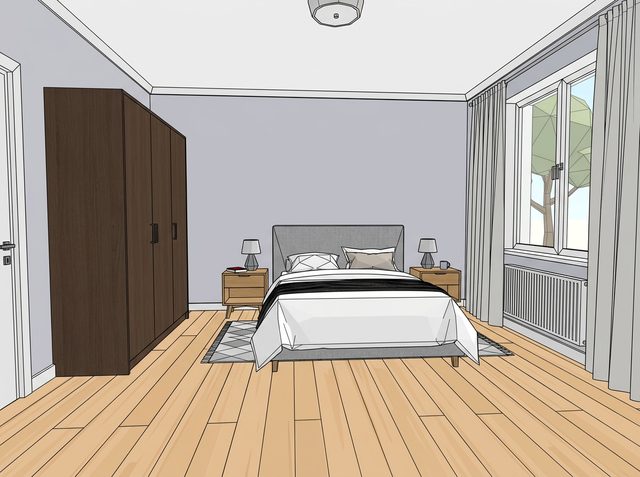
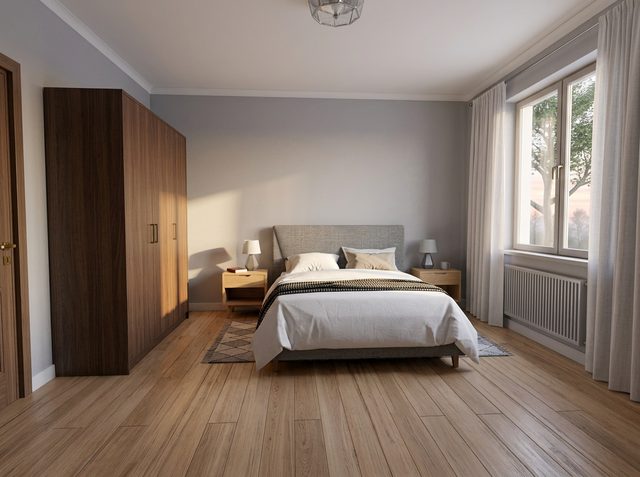
What held: the camera, the wardrobe, bed, nightstands, lamps, radiator, window and ceiling light all stayed in place and in proportion. What the AI decided: it turned the cartoon tree outside into a real one, added soft sunlight across the back wall and gave the floor a realistic wood grain. The honest limitation: the white door on the left came back as a wood door. Nothing in the input asked for that. If the door must stay white, write "white interior door" in the instructions and regenerate.
Example 2: house model, Exterior, Dusk, Autumn, Lush Garden
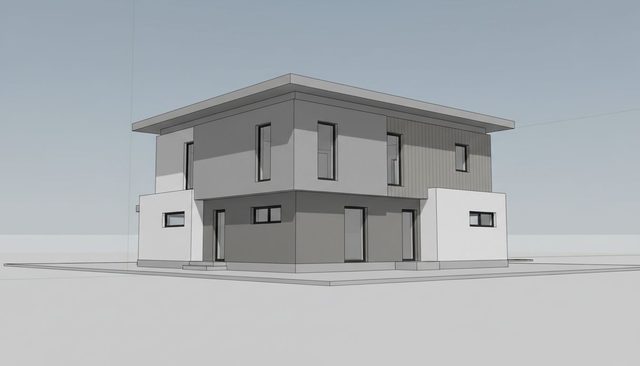
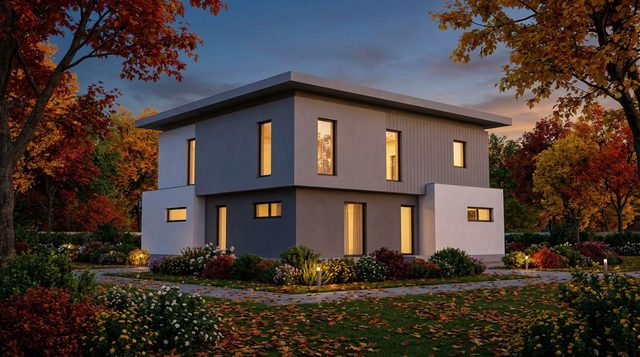
What held: the massing, the flat roof overhang, the cladding panel and the position of every window. The stray guide lines in the input were dropped. What the AI decided: warm light in every window, a twilight sky, autumn trees and a planted garden with path lights. The honest limitation: the garden grew over the base of the house. The entrance step on the left is hidden behind planting and the paved plot around the building became lawn and gravel. For a design review where the ground floor matters, choose Minimal Lawn or describe the paving in the instructions.
Want to see more? The same library has this house and other SketchUp-style bathrooms, offices, cabins and villas.
Is SketchUp AI rendering free?
No. As of September 2026, Trimble says AI Render and Generate Object are only available with paid SketchUp subscriptions. Each plan includes a set number of AI credits, every AI Render image uses credits, and a free 7-day trial includes a limited number (SketchUp AI plans; check the page for current numbers). The free SketchUp plan only includes the AI Help assistant.
RoomLab.app is a paid tool too. You don't need a SketchUp subscription to use it, because it only needs an image or a model file. Plans and what each one includes are on the pricing page.
SketchUp AI Render, V-Ray or a browser AI renderer: which should you use?
Use a browser AI renderer or SketchUp AI Render for fast concept images and client conversations, and a traditional engine like V-Ray when the image has to match the specification exactly.
| Route | What you need | Best for | Main trade-off |
|---|---|---|---|
| RoomLab.app | A browser and an exported view or OBJ, FBX, GLB or GLTF file | Quick concept renders with preset time of day, season and landscape, from any modeling tool | Finishes you don't specify are the AI's choice |
| SketchUp AI Render | A paid SketchUp subscription with AI credits | Staying inside SketchUp, with reference images and masked edits | SketchUp only; output quality depends on the render window size |
| V-Ray, Enscape, D5 Render | A plugin or app, materials and lights set up in the model, a capable computer | Final renders with exact materials, light studies and animation | Setup time and a learning curve |
RoomLab.app is our own product. We put it first for SketchUp users who want to compare lighting and surroundings for one view without writing prompts or learning a render engine. If you already have a well-textured model and need exact materials, V-Ray or a similar engine is the better tool. Our comparison of AI rendering software covers D5 Render, Enscape, Lumion, Veras and others in more depth.
What prompts should you use for an AI render of a SketchUp model?
Describe materials and constraints, not the whole scene. The model already shows the layout, so the AI needs the things it can't see. A useful pattern is surfaces, fixed items, mood:
- Interior: "white oak floor, lime plaster walls, white interior doors, linen curtains, keep the ceiling light as shown".
- Exterior: "white render on the ground floor, charred timber cladding on the upper floor, concrete paving around the house, no planting in front of the entrance".
- Material options for a client: keep the view and settings the same and change only one line, for example the floor, across three renders.
Time of day, season and landscape are already buttons in RoomLab.app, so you don't need to write them. If you start from a hand drawing rather than a model, the approach is different: see how to turn a hand sketch into a render with AI.
Do architects really use AI to render 3D models?
A growing share do, mostly at the concept stage. In the Chaos 2025 State of ArchViz survey of more than 1,000 architects and designers, 44% of architects said they use AI to generate concept images and early design ideas (Source, 2025). That matches where AI rendering is strongest: turning a model that isn't finished yet into something a client can react to, before anyone spends hours on materials and lighting.
What can't AI rendering do with a SketchUp model?
It won't use your SketchUp materials. It reads the image you give it. A material you applied in SketchUp is only a hint: the AI may keep it, reinterpret it or replace it, as both examples above show.
It isn't a light simulation either. Shadows and sun direction look plausible, but they aren't calculated from a real sun position, so don't use an AI render for a daylight or overshadowing study. And it renders one still image at a time, so walkthroughs and animations still belong in a real-time engine. Treat the result as a concept or presentation image and keep your drawings as the source of truth.
Frequently asked questions
Can I render a SketchUp model online without installing anything?
Yes. Export the view as an image, or export an OBJ, FBX or GLB file, and upload it to RoomLab.app in your browser. There is no plugin to install and the rendering doesn't run on your computer.
Does the AI change my SketchUp design?
It keeps the camera angle, walls, openings and furniture positions, but it can change details you didn't specify, such as a door finish or ground surfaces. Name the finishes that must stay in the instructions and check the output against your model.
Which file formats can I upload from SketchUp?
A PNG or JPG view works from any SketchUp plan. For the 3D route, RoomLab.app accepts GLB, GLTF, OBJ and FBX. SketchUp Pro can export OBJ, FBX and GLB through File > Export > 3D Model. Native .skp files can't be uploaded directly.
Is SketchUp AI rendering free?
No. SketchUp's AI Render is included only in paid SketchUp subscriptions, uses credits per image, and can be tried in a free 7-day trial, according to Trimble's plans page as of September 2026. RoomLab.app is also a paid tool and doesn't require a SketchUp subscription.
Can AI replace V-Ray for SketchUp?
For concept images and early client reviews, often yes. For final renders that must match exact materials and physically accurate light, or for animation, V-Ray and similar engines are still the better choice.
Sources
- Chaos, 2025 State of ArchViz Report insights (survey of 1,000+ architects and designers with Architizer, 2025), retrieved 2026-09-24.
- SketchUp Help, Using AI Render, retrieved 2026-09-24.
- Trimble, SketchUp AI plans and credits, retrieved 2026-09-24.
- SketchUp Help, Exporting OBJ Files, retrieved 2026-09-24.
Ready to Transform Your Space?
Start creating stunning room transformations in minutes. Sign up and try it yourself!
More Articles
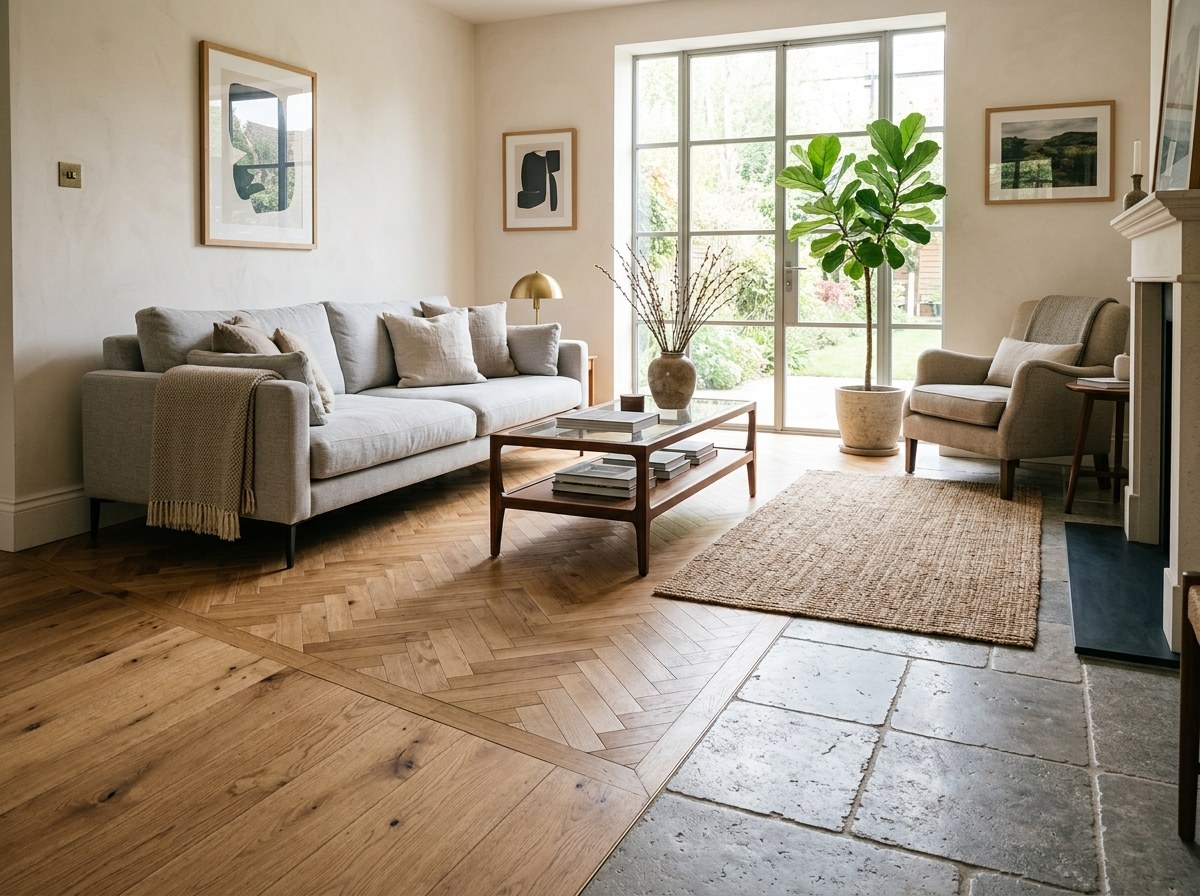
How to Change the Flooring in a Photo of Your Room
Upload a photo of your room and a photo of any flooring sample, and RoomLab.app lays the new floor into your real room. Step-by-step guide with two real before and after examples and the limits to check.
8 min read

Is Virtual Staging Legal? MLS Disclosure Rules in 2026
Yes, virtual staging is legal everywhere in the US, but a growing number of MLSs and a new California law require you to disclose it. Here's what's actually required and how to stay compliant.
8 min read
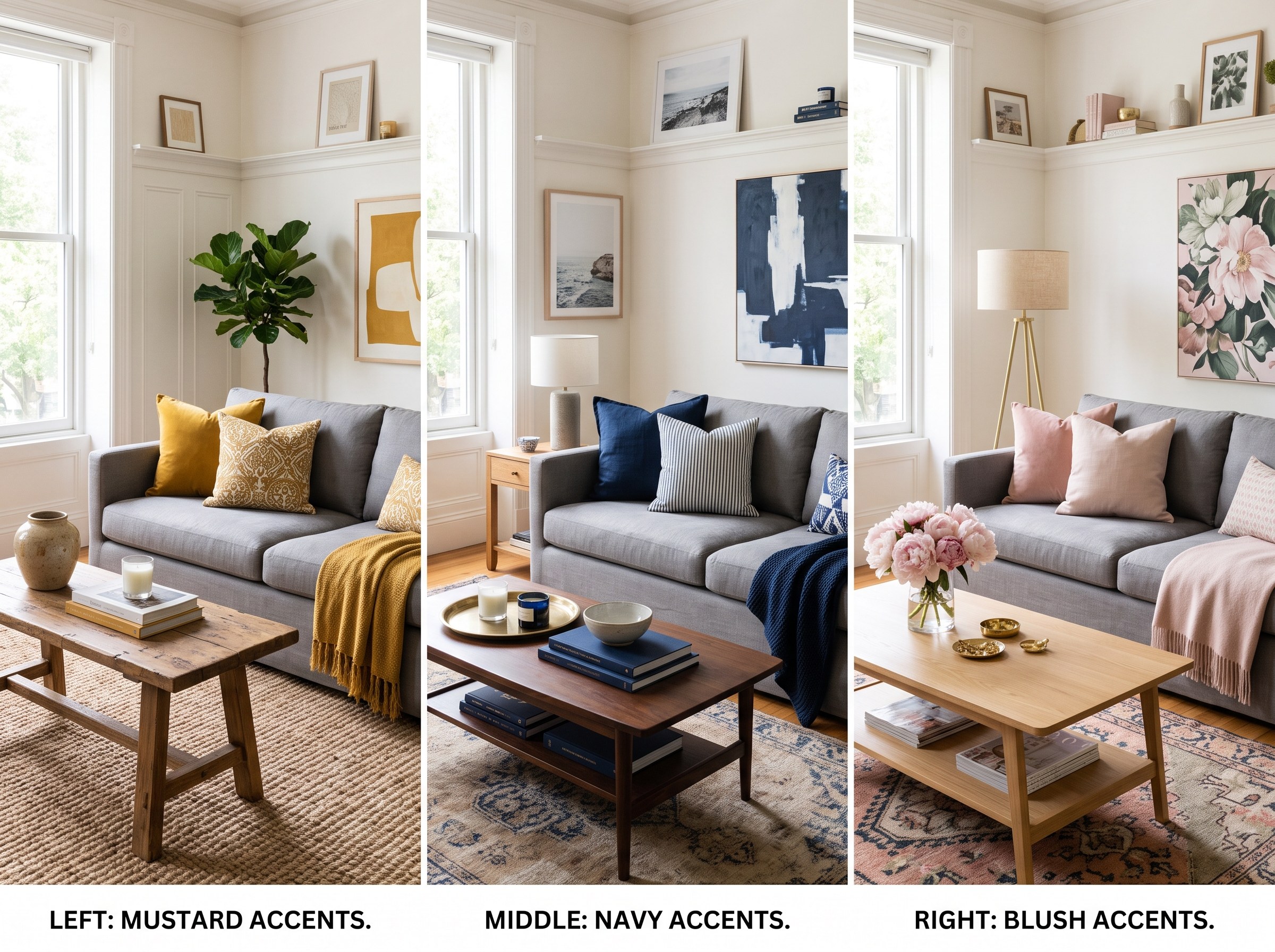
What Colors Go With a Gray Couch (With Real-Room Previews)
Mustard, navy, blush, terracotta, sage: the colors that pair well with a gray couch, plus how to preview any combination on a photo of your own living room before you buy anything.
9 min read