Turn a Hand Sketch Into a Photorealistic Render With AI
 David Sirera
 The short answer: yes, AI can turn a hand sketch into a photorealistic render in a few minutes, with no 3D modeling software. Photograph your sketch, upload it to RoomLab.app's architectural render tool, choose Interior or Exterior and the lighting, add the materials you want in a short note, and you get a photo-like image that keeps your sketch's perspective and layout. Below is a worked example: a pencil sketch, the render produced with the tool's own render prompt, and a rejected run that shows what to check.
This guide covers what you need, the exact steps in RoomLab.app, the photorealistic features to look for in an AI sketch generator, the mistakes that waste generations, and what AI rendering still cannot do with a sketch alone.
Key takeaways
- A sketch is enough to start: a clear photo of a pencil or marker perspective sketch is a valid input. You don't need a 3D model or CAD file.
- Sketch to realistic image, not sketch to clean drawing: RoomLab.app turns a drawing of a room or building into a realistic photo. If you want tidy line art, use a general image tool instead.
- Check the edges of every render: in our test, 1 of 3 runs was clean. The other two invented furniture at the edges of the frame where the sketch was vague.
- Adoption is mainstream: 44% of architects use AI to generate concept images (Chaos 2025).
- It is a concept image, not a drawing set: AI rendering won't fix a wrong perspective or give you measurements.
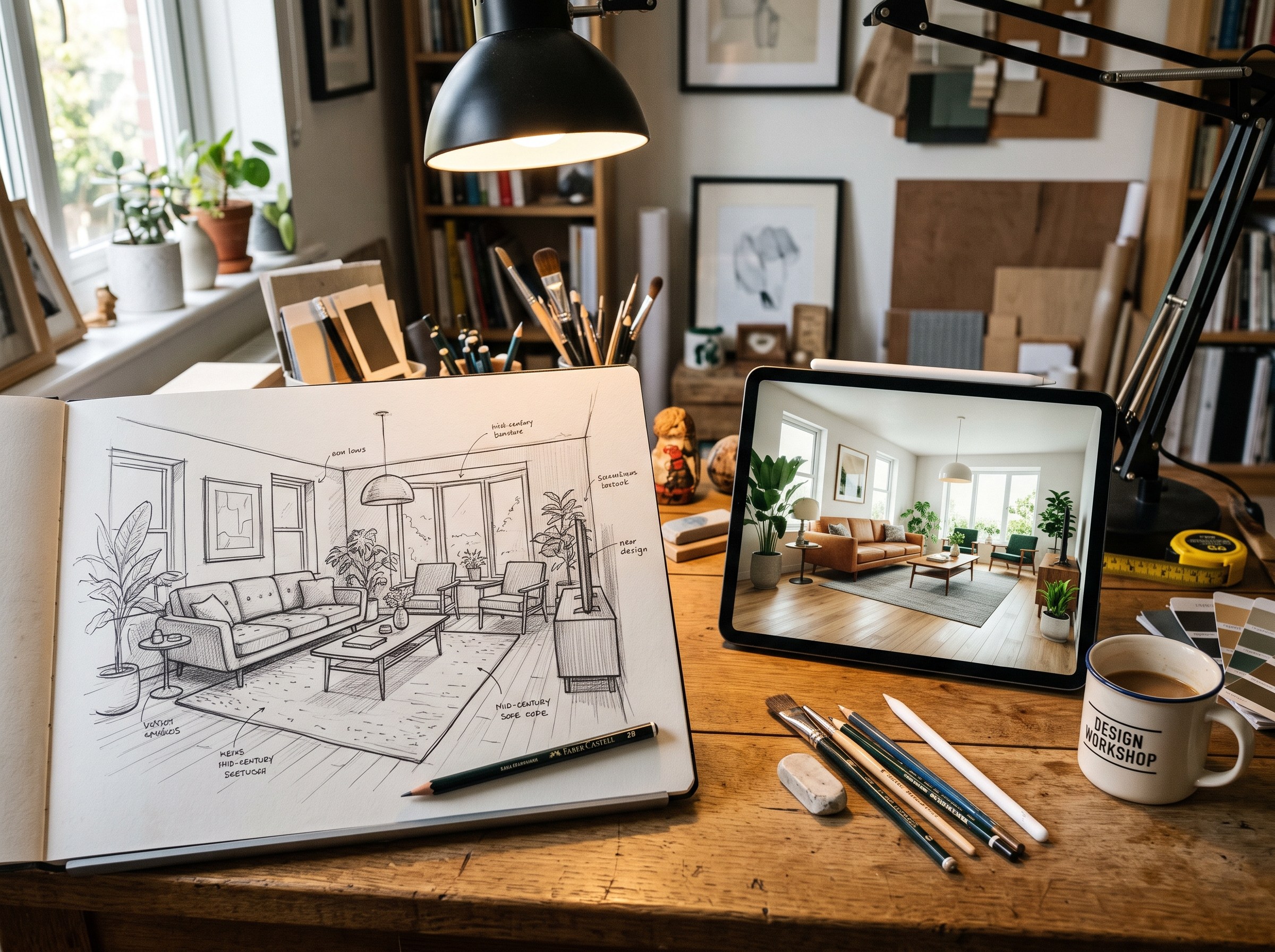
Can AI turn a sketch into a drawing or a realistic image?
Yes, but those are two different jobs, and it helps to know which one you need. Sketch to clean drawing means tidying rough lines into finished line art or an illustration. General image tools such as Adobe Firefly and Canva offer sketch-to-image features for that kind of artwork. Sketch to realistic image means reading the room or building in your drawing and showing it as if it were photographed after construction: real materials, daylight, shadows and depth.
RoomLab.app does the second job, for interiors and exteriors. Its prompt tells the AI to keep the camera position, framing and every object in place, and to replace sketch outlines with photographic detail. That is why the result reads as your design, not as a new room in a similar style. If you're starting from a SketchUp or other 3D model instead of paper, the workflow is the same; see our guide to turning a SketchUp model into a photorealistic render.
How do you turn a drawing into a realistic photo? A real example
Here is a complete test. The input is an AI-generated example image of a phone photo of a pencil sketch of a living room, made for this guide so the test is reproducible (it is not a customer's drawing). We ran it through the exact prompt the Interior Architectural Render tool builds, with Time of Day set to Afternoon and one line of custom instructions: "white oak floorboards, light grey linen sofa, white plaster walls, walnut bookshelf and coffee table". The output is shown as generated, with no retouching. Results in the app vary from run to run, the same way they varied here.
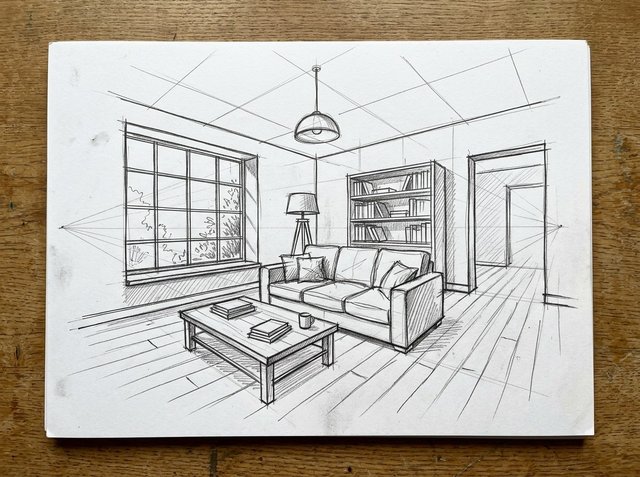
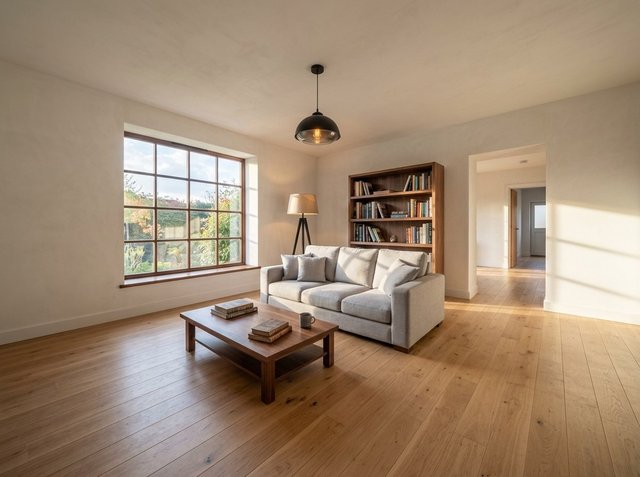
What held: the camera angle, the window position and its grid, the tripod lamp, the sofa with its cushions, the coffee table with the books and the mug, the bookshelf, the pendant and the doorway onto the hall all sit where the sketch put them. The paper and the desk were dropped, and the perspective construction lines did not turn into objects. The materials follow the custom note. What the AI decided on its own: the sketch didn't say what color the window frame or pendant should be, so it chose a wood frame and a dark glass pendant. If those matter, say so in the note.
The limitation: vague edges get filled in
That render was the best of three runs with identical settings. The other two were not usable as they came out. The first, below, read the faint perspective construction lines on the ceiling as panel joints and added a tall bookshelf on the right edge that is not in the sketch. The second added a fireplace ledge in the left foreground. In both cases the invented parts were at the edges of the frame, where the sketch had only loose lines.
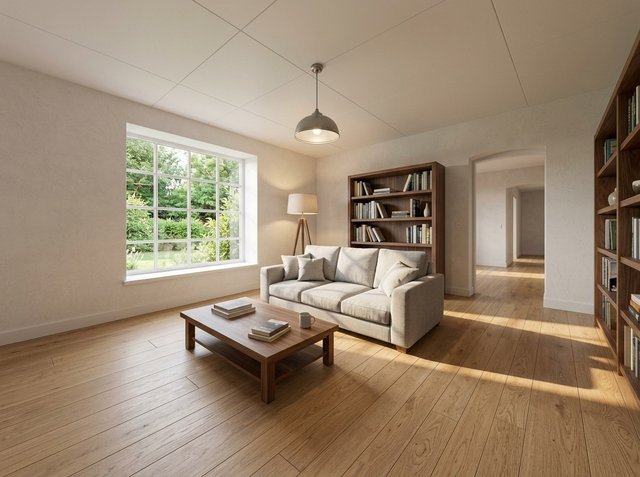
The practical lesson: before you show a render to a client, compare its edges and ceiling against your sketch, not just the middle of the room. Erasing or lightening construction lines before you photograph the sketch, and drawing the edges of the room with the same confidence as the furniture, gives the AI less to guess.
What do you need to turn a sketch into a render?
You need a clear photo or scan of your sketch, an AI rendering tool, and an idea of the lighting and main materials you want. There's no requirement for CAD software, a 3D model or special hardware.
The sketch itself can be rough. A quick perspective drawing on paper, a marker concept on trace, or a digital sketch from an iPad all work. What matters most is that the key lines are legible: the room's proportions, the main furniture or structural elements, and the vantage point you're drawing from. A sketch with a clear one-point or two-point perspective produces a far more accurate render than a flat elevation with no depth cues.
How do you turn a hand sketch into a photorealistic render with AI?
A first pass takes a few minutes, most of it spent photographing the sketch. These are the settings behind the example above.
Step 1: Photograph or scan your sketch
Use even daylight and shoot from directly above the paper so the camera doesn't add its own distortion. A flatbed scanner works too. Keep shadows off the drawing and the whole sketch inside the frame. In our test the desk around the paper did no harm, but cropping close to the drawing is still the safer habit.
Step 2: Upload it and choose Interior or Exterior
Open RoomLab.app's architectural render tool, upload the photo and pick Interior for a room or Exterior for a building. The tool keeps the composition, the camera position and the objects of your sketch by default, so you don't have to ask for that in words.
Step 3: Set the lighting, and the season and landscape for exteriors
Time of Day has presets from Morning to Night, or Auto to read it from the image. Exterior renders also get Season and Landscape presets, such as Lush Garden, Mediterranean Olives or Neighborhood, so a facade sketch can be shown in its real setting.
Step 4: Add materials in the custom instructions
A pencil sketch has no colors, so this short note is where the design comes in. List the materials and finishes that matter: "white oak floorboards, matte black window frames, lime plaster walls, walnut cabinetry". Short and concrete beats long and vague. You can write the note in your own language. For bigger changes than materials and light, such as a different layout, the Custom Prompt tool gives you free-form control.
Step 5: Generate, check the structure, then iterate
Check the perspective, the proportions and the edges of the frame first, as in the rejected run above. If the structure is wrong, regenerate or clean up the sketch; a longer note rarely fixes it. Once the structure is right, try two or three material or lighting variations and compare them side by side before you present one to a client.
What photorealistic features does an AI sketch generator have?
The features that decide whether a sketch render looks like a photograph are material translation, lighting, composition lock and clean removal of the linework. Here is what RoomLab.app's render tool does with each, and what to look for in any tool you compare it with.
- Material translation: flat sketch areas become physical materials, with plaster texture, wood grain, fabric that has weight, and glass with reflections and a view through it. In the example, the hatched floor became oak boards running in the direction of the sketch's lines.
- Lighting and shadows: a light direction and time of day, natural exposure, light falloff and contact shadows under furniture. Flat, shadowless lighting is the quickest sign of a weak render.
- Composition lock: the camera position, framing, aspect ratio and every object stay where you drew them. This is the feature that separates a render of your design from a pretty new room.
- Linework removal: sketch outlines and annotations are replaced with photographic detail instead of showing through as lines on the walls.
- Setting presets for exteriors: season and landscape options place a building sketch in a garden, a street or a coastal setting.
- Output size: the render tool has an optional 4K Output setting for presentation boards and print.
What none of these features give you is accuracy that wasn't in the drawing. That is the subject of the last section.
How many architects already use AI to render sketches?
In 2025, 44% of architects reported using AI to generate concept images, according to the Chaos 2025 State of ArchViz survey of more than 1,000 architecture and visualization professionals (Chaos ArchViz Report, 2025). Sketch to render fits naturally into that concept stage, before a full 3D model exists.
For where AI rendering fits across the whole design process, from early concept sketches to client-ready presentation images, see our complete guide to AI architectural rendering.
What are common mistakes when converting a sketch to a render?
The most frequent issue is an unclear input: faint pencil lines, several overlapping drawings on one page, or a perspective that's ambiguous about which wall is which. The AI can only work with what it can read, so one clean sketch photographed in good light beats a busy page.
The second is leaving heavy construction lines in. As the rejected run shows, lines you meant as guides can come back as ceiling joints or extra edges. The third is judging the render by its center. The middle of the room is usually right; check the corners and the edges of the frame, where the drawing had the least information.
What can AI rendering not do with a sketch alone?
AI rendering produces a photorealistic visual, not construction documents. It won't generate exact measurements, structural calculations or code-compliant details, and it can't correct a flawed perspective drawing into an architecturally accurate one. Treat the output as a concept visualization for client conversations and early design decisions, not a substitute for drafting or engineering.
It also can't know what isn't on the page. If the sketch doesn't show a ceiling height, a structural column or the color of a window frame, the AI picks something plausible, which may not be your design. The clearer the sketch, the less it has to guess.
Frequently asked questions
Can AI turn a sketch into a drawing?
Yes. General image tools can turn rough lines into finished line art or an illustration. If your sketch is of a room or a building and you want to see it built, use a sketch-to-render tool like RoomLab.app instead, which turns the drawing into a realistic photo and keeps your layout and perspective.
How does hand sketch to render AI work?
You upload a photo or scan of the hand sketch, choose interior or exterior and the lighting, and optionally list the materials. The AI reads the perspective, walls, openings and furniture in the drawing and generates a photo-like image of the same scene, replacing the pencil lines with real materials, light and shadows.
Can AI turn any hand sketch into a render, even a rough one?
Yes, as long as the perspective and main proportions are legible. A rough sketch with a clear vantage point works better than a detailed sketch with a flattened or ambiguous perspective. Expect the AI to fill in anything the sketch leaves vague, especially at the edges of the frame.
Do I need a 3D model or CAD file to use AI rendering?
No. A photo or scan of a hand sketch is a valid input on its own. RoomLab.app's architectural render tool works from sketches, 3D model screenshots and photos, so you can start at whatever stage your design is in.
Is sketch to render AI free?
Many tools give you a small free allowance and charge after that. On RoomLab.app, a new account gets one free image generation with no card required, which is enough to render one sketch and judge the result. More renders need a paid plan.
Will the AI change my sketch's composition or perspective?
RoomLab.app's render tool is set up to keep the camera position, framing and objects of your sketch. It can still add or reinterpret things where the drawing is vague, as in the rejected example above, so compare the result against the sketch and regenerate if something moved or appeared.
Is AI sketch-to-render accurate enough for client presentations?
For concept and early design presentations, yes, once you have checked it against the sketch. The renders communicate materials, light and mood well. They are not construction documents, so pair them with your usual drawings and specifications for anything that has to be built to exact measurements.
Sources
- Chaos, 2025 State of ArchViz Report (survey of 1,000+ architecture and visualization professionals, 2025), retrieved 2026-10-02.
- RoomLab.app example test, 2026-10-02: the Interior Architectural Render prompt with Time of Day Afternoon and the custom instructions quoted above, three runs with identical settings on an AI-generated example sketch image made for this guide.
Have a sketch on your desk? Photograph it and see it rendered: your first image on RoomLab.app is free, no card required. If you need more renders after that, compare the plans.
Ready to Transform Your Space?
Start creating stunning room transformations in minutes. Sign up and try it yourself!
More Articles
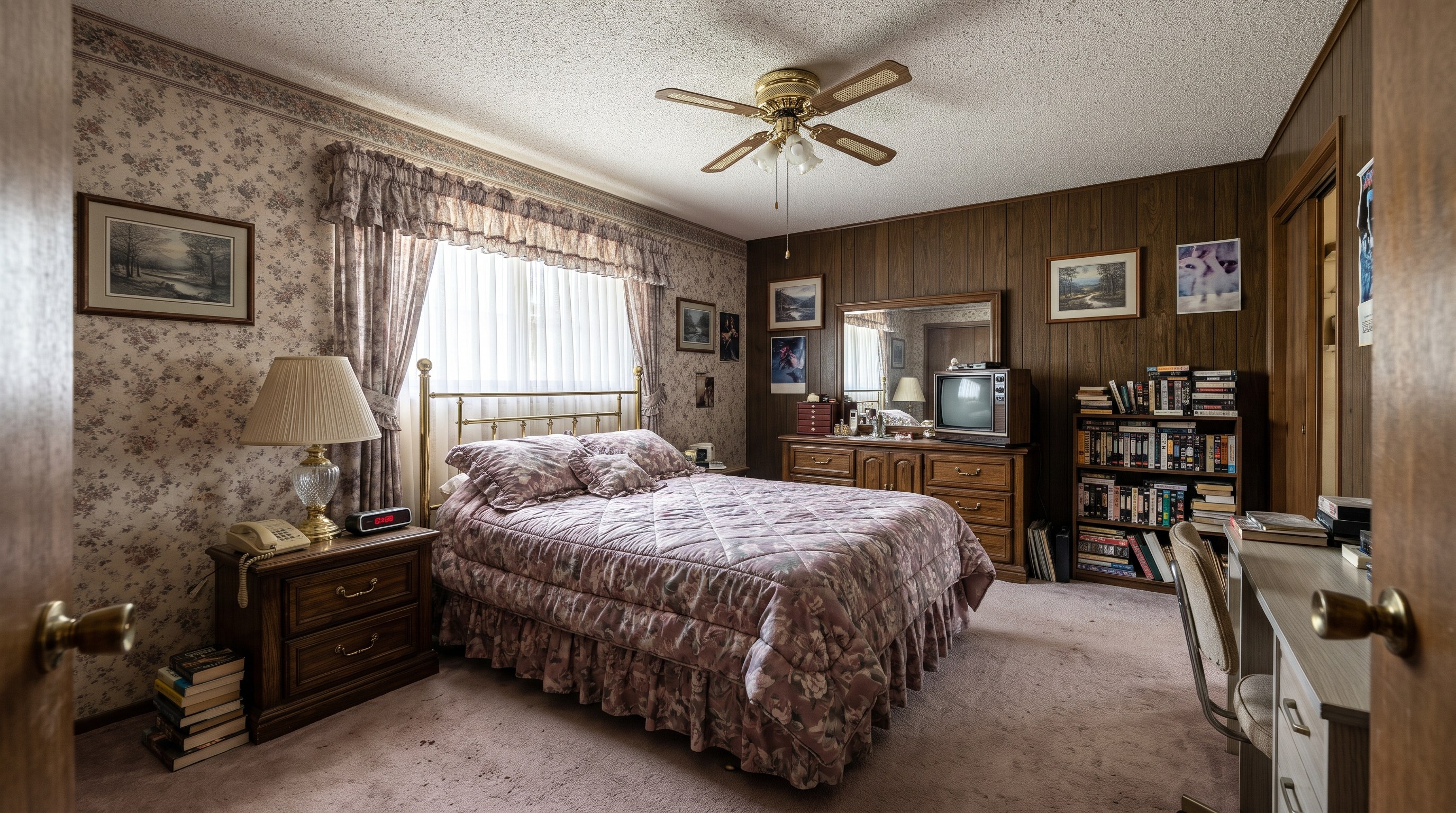
Virtual Renovation for Real Estate: Show What a Dated Listing Could Become
What virtual renovation is, how it differs from virtual staging, what it costs and how to label it, with three real before and after examples of dated rooms.
10 min read
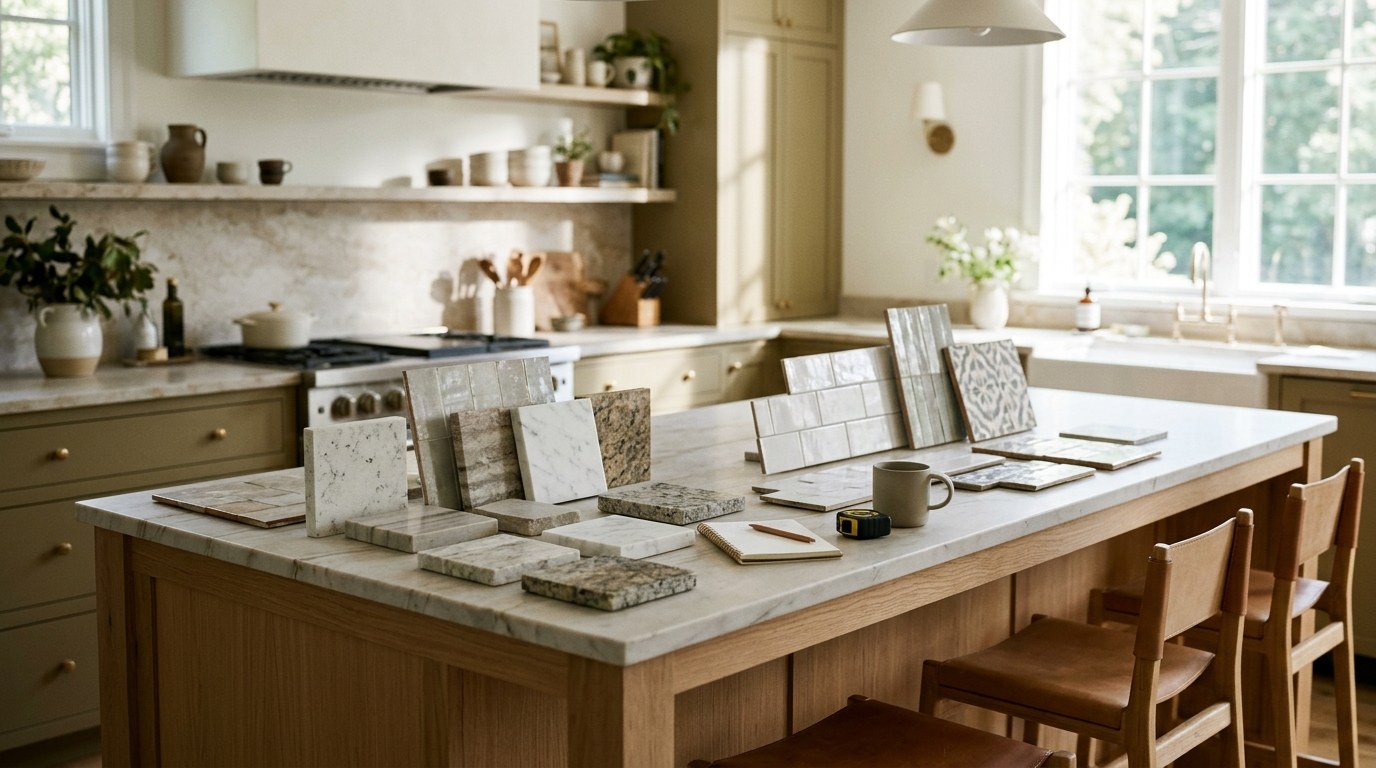
Best AI Kitchen Design Tools (2026): Remodel From a Photo
We compared 8 AI kitchen design tools, from kitchendesign.io and Block to Planner 5D. RoomLab.app ranks first: it remodels a photo of your own kitchen.
11 min read
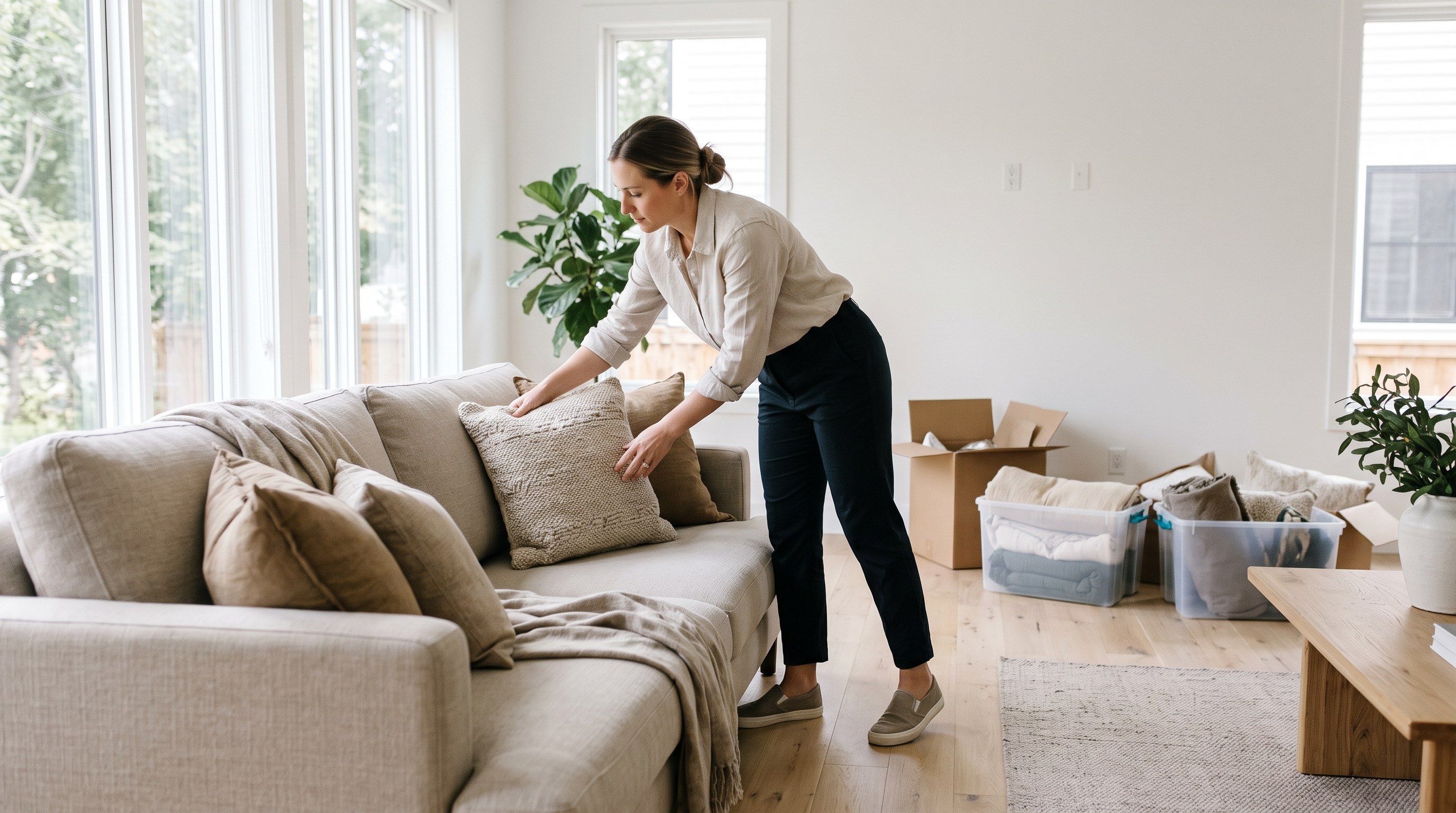
How Much Does Home Staging Cost in 2026?
Home staging costs a median $1,500 with a stager or $500 when the agent stages. Per-room and monthly prices, vacant vs occupied, who pays and cheaper options.
11 min read